
how to enable crosshair on any game pc usually comes down to one thing: adding a reticle overlay the game doesn’t provide, without getting banned or making your image look worse.
If you play shooters, survival games, or even some third‑person titles, you already know the pain, certain weapons or hip-fire modes feel like guessing, and some games hide the crosshair for “realism.” A clean, consistent crosshair can make your aim feel steadier and your practice more transferable between games.
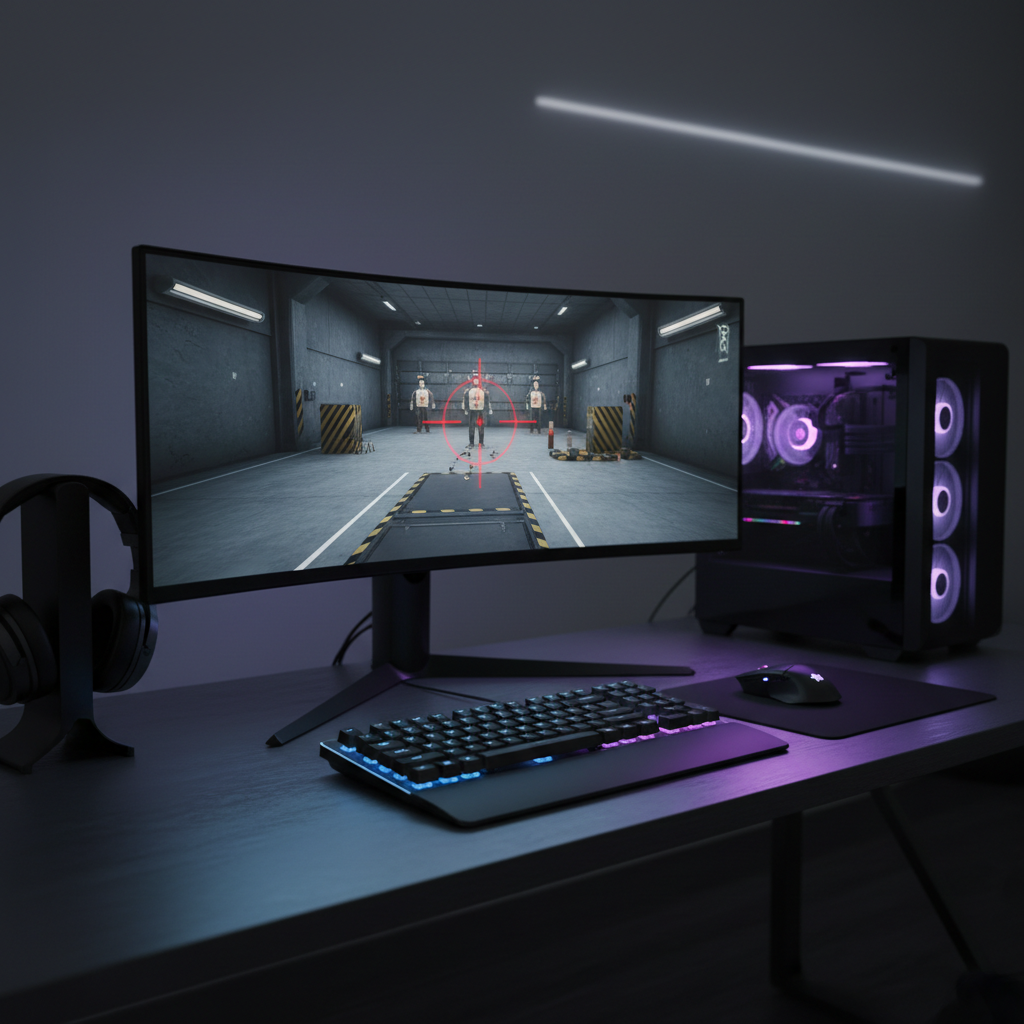
There’s also a trap here: lots of “crosshair tools” are fine in single-player, but risky in competitive multiplayer because anti-cheat systems can flag anything that injects into the game. So this guide stays practical, and it stays conservative where it matters.
What “custom crosshair” really means on PC (and why it matters)
A custom crosshair is just a visual reference point you place at the screen center, typically a dot, plus sign, circle, or small reticle. It can be built into the game, drawn by your monitor, or layered on top by software.
The reason it helps is simple: it reduces micro-hesitation. When you don’t have a stable center reference, you tend to “hunt” for the middle of the screen, especially during hip-fire, quick peeks, or when recoil lifts the camera.
- Consistency: same reticle feel across different games
- Faster target acquisition: less guessing where center is
- Better practice: aim drills translate more cleanly
Before you start: anti-cheat and account safety (read this)
Not every method is equal. Many competitive games run anti-cheat that can treat overlays and hooks as suspicious, even if you “only” draw a crosshair. According to Valve (Steam), VAC bans are permanent and issued for cheats detected by the system, so it’s not a place to experiment with sketchy tools.
Here’s a safe way to think about it:
- Lowest risk: in-game crosshair settings, monitor OSD crosshair
- Usually okay but varies by title: driver-level overlays, platform overlays (verify game policy)
- Highest risk: tools that inject DLLs, modify memory, or “hook” DirectX/Vulkan
If you mainly play ranked modes (CS2, Valorant, R6, Apex, etc.), prefer hardware or in-game options. If you only play single-player, you can be more flexible, but you still want clean, reputable sources.
Quick self-check: which crosshair method fits your situation?
Use this quick checklist, it saves time and avoids the “I installed five apps and none work” spiral.
- You play competitive multiplayer and worry about bans → choose monitor crosshair or in-game settings
- Your monitor has a built-in reticle feature → use monitor OSD first
- The game runs exclusive fullscreen and blocks overlays → monitor crosshair often still works
- You want different crosshairs per game → software overlay is convenient, but check anti-cheat policy
- You need pixel-perfect center for a specific resolution → software overlay or calibrated monitor reticle
Method 1 (safest): Enable a monitor built-in crosshair
Many gaming monitors include an on-screen “Crosshair,” “Aim Point,” or “Dial Point” feature. It’s drawn by the display itself, not by Windows, so it’s typically the least controversial choice for multiplayer.
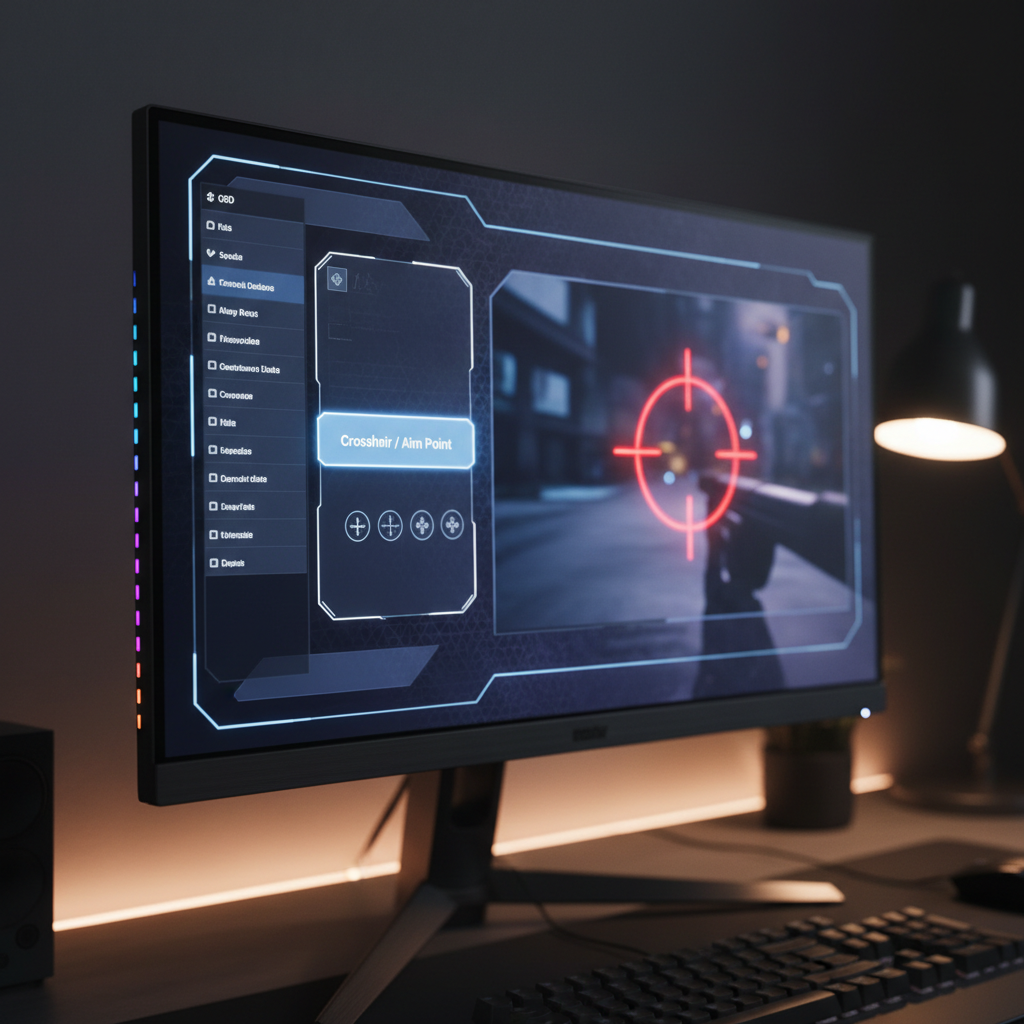
Typical setup steps (the labels differ by brand):
- Open your monitor OSD using the joystick/buttons
- Find Game or Gaming Assist
- Select Crosshair/Aim Point and choose a style/color
- Test visibility in dark and bright scenes, adjust brightness if available
Practical tip: if your monitor offers multiple reticle sizes, pick the smallest that you can still see. Oversized reticles feel “helpful” for 10 minutes, then they start blocking heads.
Method 2: Use in-game settings (when available, still best)
This sounds obvious, but many people skip it because the default crosshair is ugly. If the game has a crosshair editor, use it, because it’s fully within game rules and often includes spread/recoil feedback that overlays can’t replicate.
In most shooters, look for settings like:
- Crosshair type: dot, static, dynamic
- Thickness/gap/outline: helps with readability
- Color: use cyan, green, or magenta if red blends into enemies
- Center dot: useful for tap weapons and precision pistols
If you’re trying to learn how to enable crosshair on any game pc, the reality is some games just won’t offer these controls, so you’ll end up using Method 1 or 3 anyway.
Method 3: Add a software crosshair overlay (flexible, but be careful)
Software overlays draw a reticle above the game window. They’re convenient because you can bind hotkeys, swap profiles per game, and fine-tune shape and opacity.
But this is where you need judgment. If the overlay tool uses injection or claims it “bypasses” anything, walk away. In competitive games, “overlay” can still be a problem depending on anti-cheat and how the tool renders.
Safer ways to approach overlays
- Prefer overlays that behave like standard desktop overlays and don’t hook the game renderer
- Use borderless window mode when possible, it’s friendlier to legitimate overlays
- Test in offline modes or unranked first
- Read the game’s support/anti-cheat notes when available, don’t rely on forum hearsay
Key point: if your main goal is ranked play, a monitor crosshair is often the “set it and forget it” route. Overlays shine more in casual, training, or single-player.
Comparison table: which option should you pick?
This is the decision view I wish more people used before installing random utilities.
| Method | Works in fullscreen? | Anti-cheat risk (typical) | Customization | Best for |
|---|---|---|---|---|
| In-game crosshair | Yes | Low | Medium to High | Competitive shooters with editors |
| Monitor OSD crosshair | Yes | Low | Low to Medium | Any multiplayer, simple consistent aim point |
| Software overlay | Sometimes | Varies by game/tool | High | Single-player, training, casual play |
Practical setup tips that actually improve aim (not just aesthetics)
Once you figure out how to enable crosshair on any game pc, the next issue is making it usable across maps, lighting, and motion. Small tweaks matter more than fancy shapes.
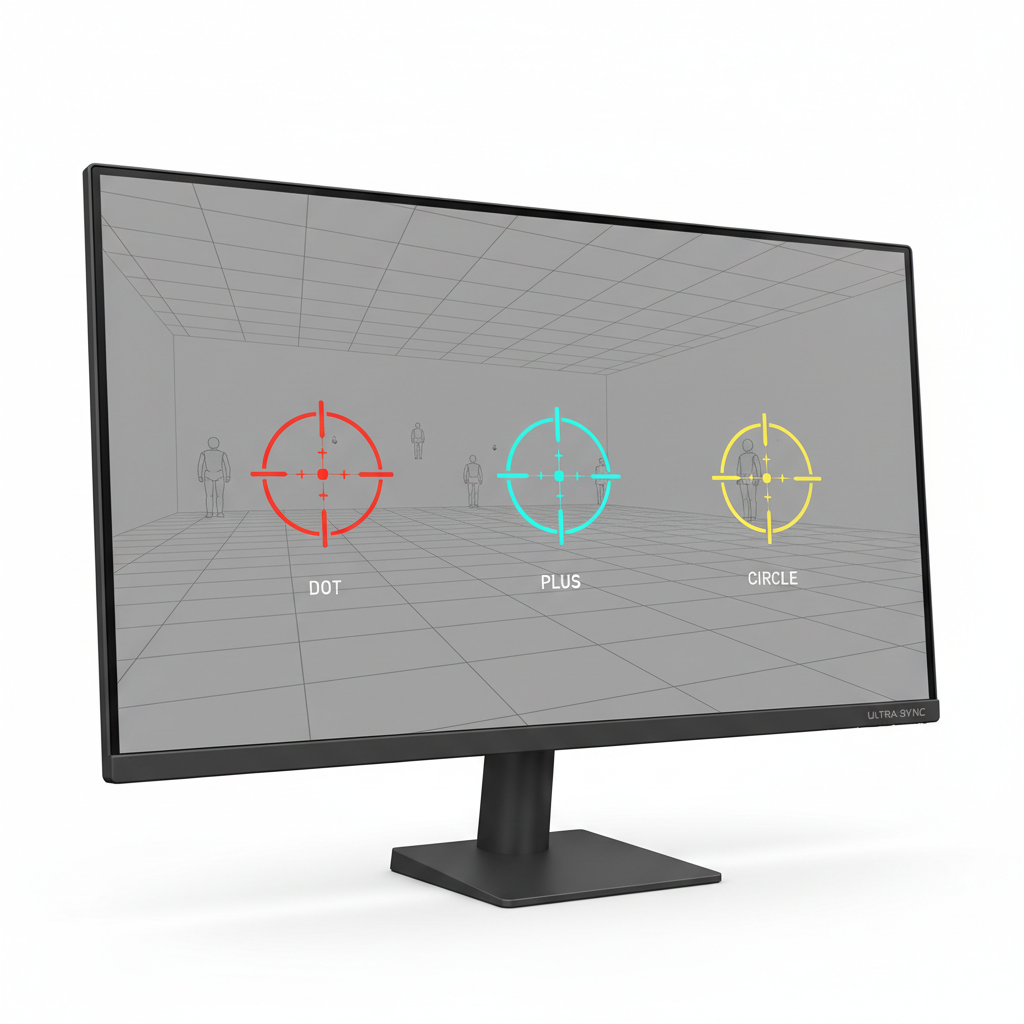
- Color contrast beats preference: pick a color that stays visible on grass, sky, and interiors.
- Use a tiny center point: many players aim better with a small dot plus thin lines, rather than thick bars.
- Avoid huge outlines: outlines can help readability, but too much outline hides fine head placement.
- Match your sensitivity workflow: if you change DPI/sens often, keep the crosshair stable so only one variable changes.
- Calibrate center: if your overlay allows pixel offsets, confirm it sits exactly center at your in-game resolution.
Key takeaways: aim feels cleaner when the reticle is small, high-contrast, and consistent across your most-played titles.
Common mistakes (why your crosshair “doesn’t work”)
Most “this tool is broken” reports are really setup mismatches.
- Exclusive fullscreen blocks overlays: switch to borderless window to test.
- Wrong scaling settings: Windows display scaling can cause slight offsets in some overlay apps.
- Color blends into the map: a white crosshair disappears in snow, a red crosshair disappears on enemies.
- Too much visual noise: animated or complex reticles distract more than they help.
- Assuming it’s “allowed” everywhere: even harmless tools can violate specific game policies.
If you’re troubleshooting how to enable crosshair on any game pc and nothing appears, start by confirming the game display mode, then verify the overlay permission settings, and only then consider swapping tools.
When to stop DIY and ask for help
If you play in leagues, tournaments, or highly moderated ranked ladders, it’s smart to be conservative. Ask a tournament admin, check the game’s official support articles, or contact the overlay vendor’s support with your game title and anti-cheat details.
Also, if your setup involves accessibility needs, vision concerns, or migraines triggered by contrast and motion, consider asking an eye care professional for general guidance on screen comfort. It’s not a diagnosis topic, but it can influence what colors and brightness levels you tolerate.
Conclusion: a safe, simple path to a better crosshair
If your goal is reliable results with minimal risk, start with the game’s own crosshair settings, then try your monitor’s built-in aim point. Software overlays can be great for flexibility, but they’re the place where you should slow down and double-check what the game allows.
Action ideas: pick one method today, set a small high-contrast reticle, then run 10 minutes of aim practice and adjust only one setting at a time. That’s usually how the crosshair stops being a gimmick and starts feeling like a tool.
FAQ
How to enable crosshair on any game PC if the game has no HUD?
Your best bet is a monitor OSD crosshair, since it doesn’t depend on the game UI. If you don’t have that feature, a lightweight overlay may work in borderless window, but check anti-cheat rules for multiplayer.
Can a custom crosshair get you banned in competitive games?
It can, depending on the method and the title. Hardware crosshairs and in-game settings are usually the lowest risk, while injection-based tools are the ones most likely to cause problems.
Why is my overlay crosshair off-center?
Common causes include Windows scaling, mismatched in-game resolution, or the overlay anchoring to the window instead of the render area. Set scaling to 100% for testing, then recalibrate offsets if the tool supports it.
Does a monitor crosshair work on consoles too?
Often yes, because the monitor draws the reticle regardless of input device. The limitation is customization, some monitors only offer a few shapes and colors.
What crosshair color is easiest to see?
It depends on the game’s color palette, but cyan, neon green, and magenta tend to stay visible across mixed environments. If your game has lots of UI in a similar color, pick something else to avoid confusion.
Is a center dot enough for most games?
For many players, yes, especially for taps and precision weapons. If you rely on tracking or need a reference for recoil control, a small plus with a dot can feel more stable.
How do I know whether an overlay tool is “safe”?
Look for transparent documentation, standard install/uninstall behavior, and a clear explanation of how it renders. If it claims “undetectable,” “bypass,” or asks you to disable security features, that’s a strong signal to avoid it.
If you’re trying to standardize your setup across multiple titles and want a more “set once, use everywhere” workflow, a monitor crosshair or a reputable overlay with per-game profiles can save time, just keep your competitive games on the safest method and test changes outside ranked first.