
how to watch youtube in vr comes down to two choices: use the official YouTube VR app (when it exists for your headset), or open YouTube in a VR browser and pick the right playback mode.
If you have ever put on a headset and ended up with a flat “movie theater” screen that looks low-res, or you cannot find 180/360 videos, you are not alone. VR video has a few extra settings, and the “best” method depends on your headset and what you want to watch.
This guide walks through the practical routes for Meta Quest, PlayStation VR2, and PC VR, plus a simple checklist to figure out why your video looks wrong. I’ll keep it grounded, because a lot of frustration here comes from small mismatches: app availability, codec support, or the wrong video format.
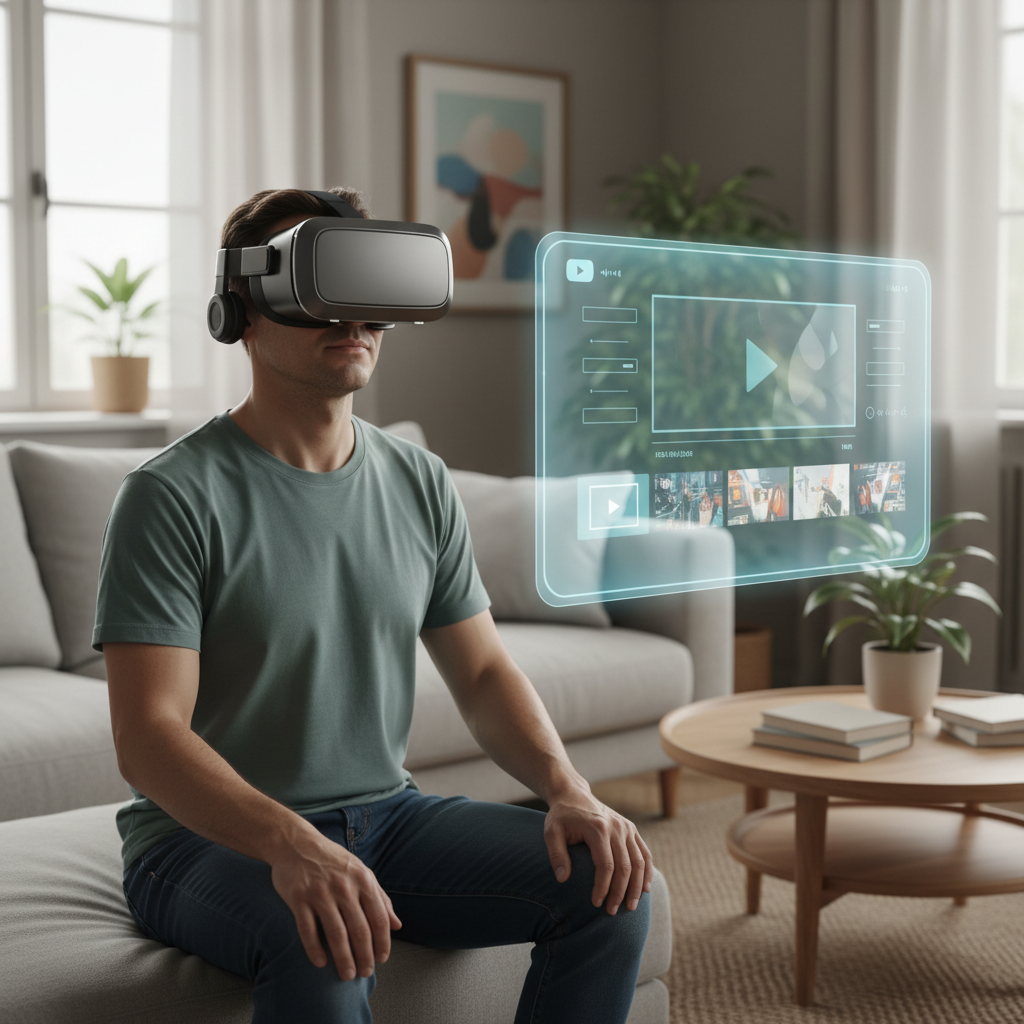
Pick your setup: headset, app, or browser (what usually works)
Before you troubleshoot anything, decide which path matches your hardware. In many cases, the browser route works on more headsets, while an app route can be smoother when it is supported.
Common ways to watch YouTube in VR
- Standalone headset (Meta Quest): YouTube app or a VR browser like Meta Quest Browser.
- PlayStation VR2: typically via cinema mode or connected experiences on PS5, app support can vary by region and over time.
- PC VR (SteamVR): watch in a VR browser, or via a desktop mirror inside VR using apps like Virtual Desktop-style tools.
- Phone-based viewers: fewer modern options, usually browser-based split-screen experiences, quality varies.
According to Google’s YouTube Help, YouTube supports 360° videos and VR experiences, but the exact viewing method depends on device and app availability, which is why two people can follow “the same steps” and get different results.
Quick self-check: what kind of YouTube VR are you trying to watch?
A lot of “it doesn’t look like VR” complaints come from watching the wrong format for the player mode. Use this fast check before changing settings.
- Standard video (2D): should appear as a flat screen in a virtual space. That is normal.
- 360 video: you can look around in all directions, but it is usually not true depth.
- VR180: stronger “presence” than 360 for many people, still half-sphere viewing.
- 3D SBS/Over-Under: meant for stereoscopic depth, requires the player to switch to 3D mode.
If you are searching YouTube, try keywords like “VR180”, “360”, or “SBS 3D”. Many creators label formats in titles, but not always, so you may need to open the video details and test.
How to watch YouTube in VR on Meta Quest (Quest 2/3/Pro)
For most US users, Meta Quest is the most straightforward path. You can usually get acceptable results in either the app or the browser, with the browser being the most “available” option.
Option A: YouTube app (when available)
- Open your headset library and install YouTube (or update it if it is already installed).
- Sign in, then search for 360 or VR180 videos.
- In playback, look for a VR/360 icon or a viewing mode toggle, depending on the app version.
App interfaces change, so if you cannot find a 360 toggle, don’t assume you did something wrong. It can be a version rollout or a device-specific UI change.
Option B: Quest Browser (often the most reliable)
- Open Meta Quest Browser.
- Go to youtube.com and sign in.
- Play a 360/VR180 video and switch to full screen if prompted.
- If the video stays flat, open the player settings and look for “360” or immersive viewing prompts.
When people ask how to watch youtube in vr on Quest, this browser method is often the least fragile because it does not depend on a single app being perfectly supported.
How to watch YouTube in VR on PSVR2 and on PC VR
This is where expectations need calibration. Some headsets have a first-party or official app path, others rely on browsers or “watch a desktop in VR” tools.
PSVR2 (practical routes)
- Cinematic screen viewing: watch YouTube on the PS5 and use the headset’s cinema-style display. This is 2D on a virtual screen, which is fine for regular videos.
- VR video: availability varies, so you may need to rely on platform updates or third-party experiences as they appear.
If your goal is true 360/180 immersion on PSVR2, double-check what is supported on your system software version and region. This category changes more than people expect.
PC VR (SteamVR / OpenXR headsets)
- VR browser: use a VR-capable browser environment and open YouTube.
- Desktop-in-VR: run YouTube on your PC browser, then view your desktop inside VR using a virtual monitor app.
Desktop mirroring is not always “true VR,” but it can be the most stable way to watch long videos, playlists, or live streams in a comfortable theater view.
Best method by goal (table)
If you are torn between app vs browser vs desktop mirroring, choose based on what you want to watch, not what sounds most “VR.”
| Goal | Best-fit method | Why it usually works |
|---|---|---|
| Regular YouTube videos (2D) | Any VR browser or cinema mode | Simple playback, fewer format issues |
| 360 videos | YouTube app or VR browser | Player can switch to immersive view |
| VR180 “real presence” clips | YouTube app (if supported) or VR browser | Better depth cues, but needs correct mode |
| 3D SBS/Over-Under videos | VR video player with 3D mode controls | You may need manual 3D format selection |
| Long sessions, live streams | Desktop-in-VR | Stable controls, easier multitasking |
Step-by-step: fix the most common “YouTube VR looks wrong” problems
Most issues fall into a few buckets: format mismatch, quality caps, or audio routing. Try these in order, and stop when you get a normal result.
1) The video is flat, not immersive
- Confirm the video is actually 360 or VR180, many popular uploads are plain 2D.
- Switch to full screen, then look for an immersive/360 icon.
- Try a different known 360 test video from a major channel, to rule out a badly tagged upload.
2) The video is blurry or “stuck” at low quality
- Manually set quality in the player, Auto can be conservative on Wi‑Fi.
- Move closer to your router or switch to a less congested network.
- Close background downloads on the headset or PC.
According to FCC consumer guidance on broadband, Wi‑Fi performance can vary significantly with distance, interference, and device placement, which is why VR streaming sometimes looks fine one day and soft the next.
3) No sound, or audio comes from the wrong device
- Check the headset volume and any mute toggle inside the app.
- On PC, select the headset as the default output device.
- If using Bluetooth earbuds, test wired or built-in speakers, Bluetooth latency and routing quirks are common.
4) Motion discomfort or eye strain
- Start with short sessions, especially with fast-moving 360 footage.
- Reduce brightness and keep the headset fit stable to avoid constant refocusing.
- If you feel nauseated or get headaches, pause and reassess; persistent symptoms are worth discussing with a healthcare professional.
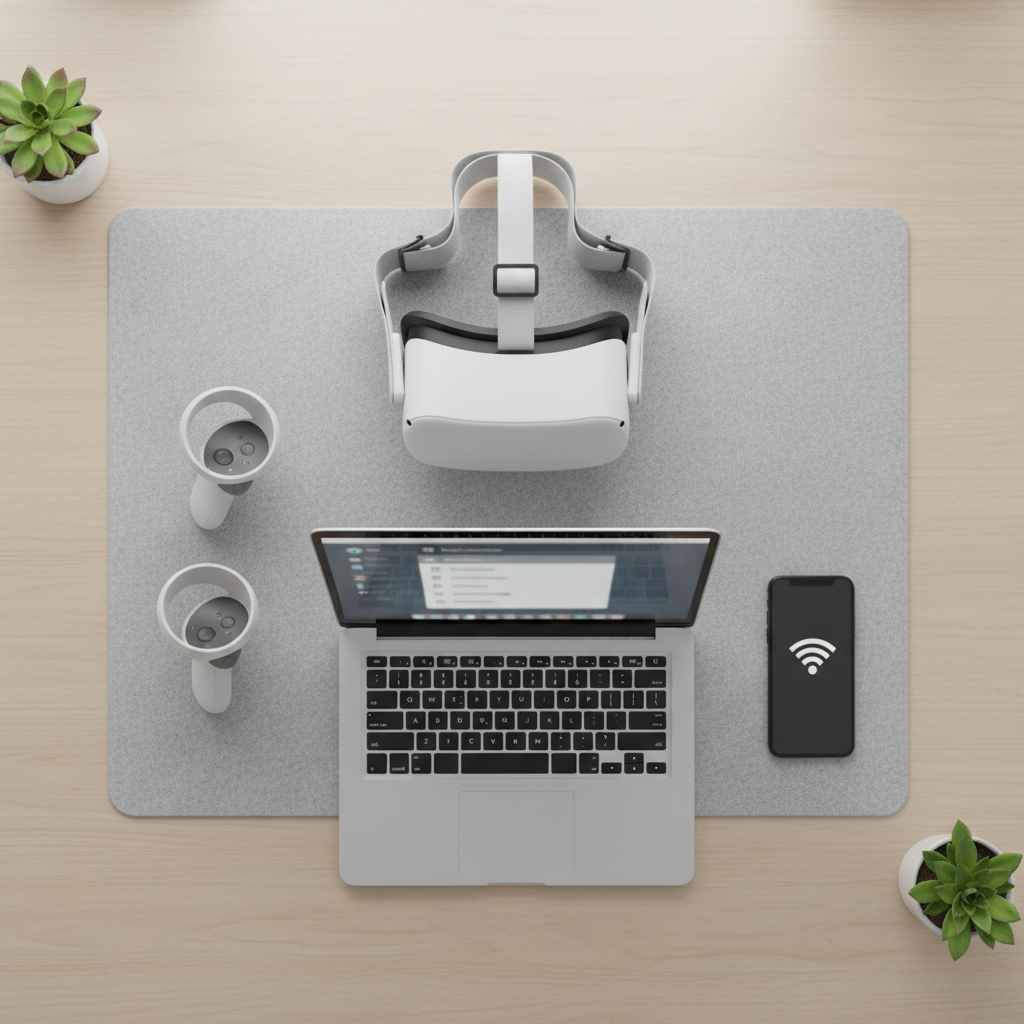
Practical tips that make YouTube VR feel better (not just “work”)
Once playback works, small tweaks make a bigger difference than people expect. This is where the experience stops feeling like a tech demo.
- Prefer VR180 when available: many viewers find it more natural than 360 for “standing there” moments.
- Use a comfortable virtual environment: darker theater spaces can hide compression artifacts and reduce glare.
- Lock in fit and IPD: if your headset supports IPD adjustment, set it close to your measurement, clarity improves.
- Save a few “known good” videos: when something breaks, you can test quickly without guessing if the content is the problem.
If you are sharing with friends or family, start them on a calm 2D video in a theater view, then move to slow 360. Jumping straight to a shaky 360 travel clip is where a lot of “VR made me sick” stories begin.
Key takeaways and next steps
If you want how to watch youtube in vr to be simple, use the official app when it is supported, and keep a VR browser option in your back pocket for everything else. Most “broken VR” moments are just the wrong format, the wrong mode, or quality stuck on Auto.
Action to take now: pick one headset path above, test with a known 360 or VR180 video, then adjust quality and viewing mode before you assume your device cannot do it.
FAQ
- Why does YouTube look like a big flat screen in my headset?
Because most YouTube content is 2D. A flat virtual screen is expected unless the video is labeled 360, VR180, or 3D and the player switches into that mode. - How do I find real VR videos on YouTube?
Search for “VR180” or “360 video,” and open a few uploads from larger channels to test. Some videos are tagged inconsistently, so trying multiple sources saves time. - Is the YouTube VR app required?
No. In many cases you can watch through a VR browser. The app can be smoother when it is available, but it is not the only workable method. - How to watch youtube in vr with the best quality?
Manually set the highest available quality, use strong Wi‑Fi, and avoid network congestion. For long sessions, desktop-in-VR viewing can be more stable than a native app. - Why is my 360 video stuttering in VR?
It is often bandwidth or decoding strain. Lower the quality one step, close background apps, and check Wi‑Fi signal. On PC, updating GPU drivers can help, but results vary by system. - Can I watch YouTube VR with friends in the same virtual room?
Possibly, but it depends on the social VR app you use and how it handles web video playback. Some apps support shared screens, others block certain streams. - Is it safe to watch VR videos for a long time?
Many people watch comfortably in moderation, but discomfort can happen. If you notice nausea, eye strain, or headaches, take breaks and consider asking a healthcare professional if symptoms persist.
If you are trying to watch YouTube in VR across multiple headsets, or you want a more “TV-like” setup for long sessions, it can be worth setting up a dedicated VR browser workflow and a reliable desktop-in-VR option so you are not stuck waiting on app support changes.