
How to use keyboard and mouse on ps5 usually comes down to three things: whether your game supports it, how you connect (USB vs Bluetooth), and a couple PS5 settings that people often miss.
If you’re trying to aim more precisely, type faster in chat, or just prefer a PC-style setup, PS5 can cooperate—but not every title allows keyboard-and-mouse input for gameplay. The console may recognize your devices, yet the game still forces controller input, and that’s where frustration starts.
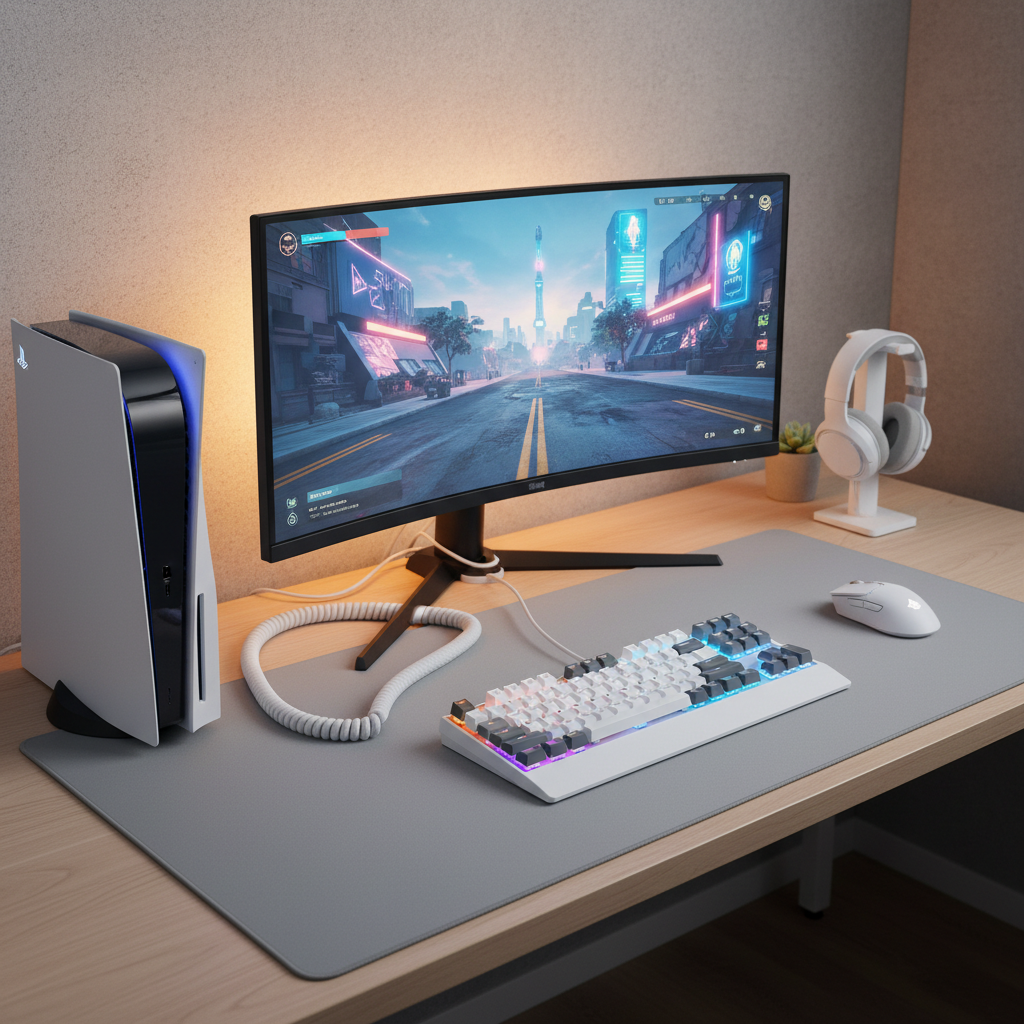
This guide focuses on what works in real life: quick compatibility checks, step-by-step connection methods, what to tweak for better feel, and what to do when the PS5 “sees” your keyboard or mouse but the game ignores it.
What PS5 supports (and what it doesn’t)
PS5 supports keyboards and mice at the system level for navigation, text entry, and some accessibility use. Gameplay support depends on each game, and that part is non-negotiable.
- System-wide: typing in search, messages, browser-like text fields in some apps, certain accessibility features.
- In-game: only if the game includes native keyboard and mouse input on console.
- Adapters: devices that “translate” keyboard/mouse into controller signals exist, but they can violate game rules or platform policies, and may lead to bans in competitive titles.
According to PlayStation Support, many USB and Bluetooth HID (Human Interface Device) peripherals work with PS5, but game compatibility varies by title and developer implementation.
Quick self-check: are you in a “will work” scenario?
Before buying anything or rearranging your whole setup, check these items. This saves most people 30 minutes of confusion.
- Your game explicitly supports keyboard and mouse on PS5 (check the game’s settings menu, official FAQ, or store listing notes).
- You’re okay using it for typing only if the game does not support gameplay input.
- Your keyboard/mouse is standard HID (most mainstream models are). Specialty drivers or macro-heavy software features usually won’t carry over to console.
- You have a stable connection plan: USB is simplest, Bluetooth is cleaner but can add latency or pairing friction.
If you’re uncertain about game support, a fast hint: if the game has separate keybind menus for console, it’s more likely supported. If it only mentions controller layouts, it’s often controller-only.
Connect via USB (the simplest, most reliable method)
For most people learning how to use keyboard and mouse on ps5, USB is the “just work” approach, especially for shooters where input lag is noticeable.
Steps (wired)
- Plug the keyboard into a PS5 USB port (front USB-A or USB-C with an adapter, or rear USB-A).
- Plug the mouse into another USB port.
- Wait a few seconds, PS5 typically recognizes them automatically.
- Test in a text field (Search in Settings or the PS Store) to confirm typing and cursor movement.
If you run out of ports, use a powered USB hub in many setups, especially if your keyboard has RGB lighting or passthrough. Underpowered hubs are a common source of random disconnects.
Connect via Bluetooth (clean setup, a bit more finicky)
Bluetooth can be great for couch setups, but pairing steps vary by brand. You’ll also want to pay attention to battery behavior and sleep settings.
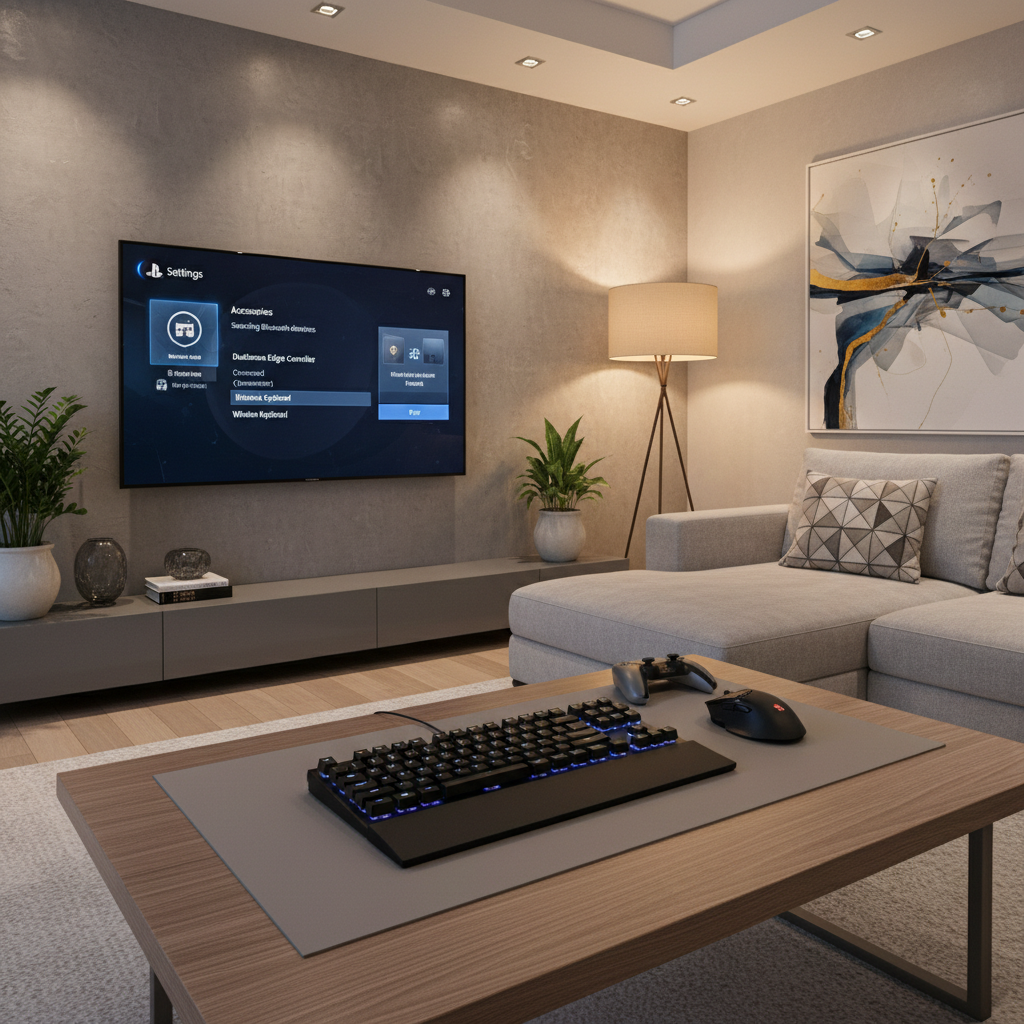
Steps (wireless)
- On PS5: Settings > Accessories > General > Bluetooth Accessories.
- Put your keyboard into pairing mode (often holding a Bluetooth button or Fn combo).
- Select the keyboard when it appears, then confirm any on-screen pairing code.
- Repeat for the mouse.
If the device never appears, try turning off nearby pairing attempts (PC/laptop/phone), and move closer to the console during setup. Some 2.4GHz dongle-based “wireless” models are not Bluetooth at all, they’re USB receiver devices, so they must be used in USB mode.
Recommended settings to make it feel “right”
Even when a game supports it, default mouse behavior on console can feel odd. The right tweaks depend on the title, but a few settings tend to matter most.
PS5-level settings to check
- Pointer speed (affects system cursor, not always in-game): Settings > Accessories (location can vary by system version).
- Communication method for the controller: if you’re still using the controller for audio or menu shortcuts, keep it stable (USB vs Bluetooth) to reduce “weirdness” when switching inputs.
In-game settings to prioritize
- Mouse sensitivity and ADS sensitivity (aim-down-sight).
- Acceleration: many players prefer lower or off if available.
- Smoothing: can help jitter but may add a floaty feel.
- Keybinds: set basics first (move, jump, interact, reload), then refine.
One practical tip: change one variable at a time, play for five minutes, then adjust again. People often over-tune, then can’t tell what actually improved.
Game support reality check (table)
Instead of guessing, approach it like a compatibility problem. This table helps you decide what outcome to expect when you connect devices.
| Scenario | What you’ll see on PS5 | What it means | What to do |
|---|---|---|---|
| Game supports keyboard/mouse | Mouse moves in menus; game shows keybind options | Likely full gameplay support | Configure in-game binds/sensitivity |
| PS5 recognizes devices, game ignores | Typing works in system; gameplay still controller-only | Title probably lacks native support | Use controller for gameplay, keyboard for chat |
| Bluetooth pairs but feels laggy | Input delay, stutter, missed clicks | Interference, low battery, or weak Bluetooth performance | Switch to USB, change placement, replace batteries |
| Random disconnects | Devices drop then reconnect | Hub power issues, cable faults, sleep behavior | Try powered hub, different port, disable auto-sleep on device |
Troubleshooting: when it won’t connect or won’t work in-game
When people say how to use keyboard and mouse on ps5 “doesn’t work,” it’s usually one of these buckets. Start with the fastest checks.
Fast fixes (most common)
- Try a different USB port, especially moving from a hub to direct connection.
- Power cycle the PS5 (full shutdown, not rest mode), then reconnect.
- Swap cables for wired devices, bad cables cause intermittent dropouts.
- Remove and re-pair Bluetooth devices in Bluetooth Accessories, then pair again.
- Check the device type: USB-dongle wireless must use the receiver, not Bluetooth menus.
When the game won’t accept input
- Look for an in-game toggle like Input Device: Controller / Keyboard & Mouse.
- Some games lock input type once a match starts, test in the lobby first.
- Confirm you’re not in a mode that restricts inputs (certain ranked playlists do).
If your goal is competitive play, be cautious with third-party adapters that emulate controller signals. Even if they “work,” rules and enforcement vary, and it can become a headache you don’t need.
Practical setup tips for comfort and consistency
Once it’s working, small physical changes often make more difference than another hour in settings menus.

- Desk setup: keep mouse pad large enough for your sensitivity, and keep the cable slack-free.
- Couch setup: consider a lapboard or firm surface, soft cushions make aiming inconsistent.
- Audio/chat: you can still use the DualSense for headset and quick menu actions, even if gameplay input comes from keyboard/mouse (depends on game behavior).
- Keep a controller nearby: some games require controller button prompts for certain menus.
Key takeaways (so you don’t overthink it)
- PS5 will usually recognize keyboards and mice, but games decide gameplay support.
- USB is the most reliable connection for low-latency play.
- Bluetooth works well in many cases, but interference and battery issues show up fast.
- If the console works but the game doesn’t, it’s likely not your hardware, it’s compatibility.
Conclusion: the simplest path to get it working today
If you want a clean win, connect both devices via USB, confirm they work in PS5 search, then jump into a game that clearly supports keyboard and mouse and tune sensitivity there. If your current title ignores the input, you can still use the keyboard for typing and keep the controller for gameplay, which is honestly how many PS5 players end up using the combo.
If you’re setting this up for a specific game and it’s still unclear which inputs it supports, your next best move is checking the game’s official support page and in-game settings menus, then deciding whether a wired setup makes sense for your play style.
FAQ
Can you use a keyboard and mouse on PS5 for every game?
No. PS5 can detect the devices, but each game chooses whether to allow keyboard-and-mouse gameplay input. Many titles still require a controller.
Why does my PS5 detect my mouse and keyboard but the game won’t respond?
That’s typically a game-level limitation. Test typing in a system text field to confirm the hardware works, then check the game for an input toggle or keybind menu.
Is USB or Bluetooth better for keyboard and mouse on PS5?
USB tends to feel more consistent and is easier to troubleshoot. Bluetooth can be convenient, but latency and interference show up more often depending on your room setup.
Do wireless 2.4GHz dongle keyboards work on PS5?
Many do, because the PS5 just sees the USB receiver as a standard device. You usually plug the dongle into the console instead of pairing through Bluetooth menus.
Can I use my DualSense at the same time as keyboard and mouse?
Often yes for menus, headset control, or quick prompts, but behavior varies by game. Some titles switch input prompts depending on the last device used.
How do I reduce mouse lag on PS5?
Try wired USB first, then remove hubs or switch to a powered hub, replace batteries for wireless gear, and keep the console away from crowded wireless sources like routers or streaming sticks.
Are keyboard and mouse adapters safe to use on PS5?
Some adapters may conflict with a game’s competitive rules or platform policies. If you mainly play online ranked modes, it’s safer to stick with native support to avoid account risk.
If you’re trying to build a PS5 keyboard-and-mouse setup that feels closer to PC, it often helps to pick hardware that behaves predictably on console and keep the connection path simple, fewer hubs, fewer wireless layers, fewer surprises.