
how to fix controller not working on epic games usually comes down to one of three things: the game never “sees” the controller, Windows picks the wrong device, or the launcher/game input setting conflicts with your controller driver.
If you just want to play and not troubleshoot for an hour, the fastest path is: confirm the controller works in Windows, remove conflicts (extra devices/overlays), then make Epic Games Launcher and the game agree on input mode.
I’ll walk through the practical checks people skip, plus a few “sticky” fixes that help when the controller works in Steam but not in Epic.
Quick diagnosis: what “not working” actually means
Before changing settings, name the symptom, because each one points to a different fix.
- Not detected at all: no response in-game, sometimes no vibration, no button prompts.
- Detected but wrong buttons: A/B swapped, triggers act like buttons, sticks drift wildly.
- Works in menus but not in gameplay: common with games that default to keyboard/mouse.
- Random disconnects: Bluetooth power saving, low battery, flaky cable, or driver hiccups.
Key point: Epic Games Launcher isn’t a controller manager the way Steam can be, so many fixes live in Windows, the game settings, or the controller’s own driver layer.
Rule out the basics (fast checks that save time)
These checks feel obvious, but they catch a lot of cases where people jump straight into reinstalling drivers.
1) Confirm Windows sees the controller
On Windows 11/10, go to Settings → Bluetooth & devices and confirm the controller shows up and reacts to input in a test tool.
- Xbox controller: try a different USB port (prefer a rear motherboard port), and a known-good data cable.
- DualShock/DualSense: USB is usually more predictable than Bluetooth for Epic games.
According to Microsoft (Xbox Support), Windows updates and correct USB pairing are common requirements for stable controller recognition on PC.
2) Disconnect “competing” devices
If you have a wheel, flight stick, extra gamepad, or even certain virtual devices installed, Windows may pick the wrong default.
- Unplug other controllers temporarily.
- Disable virtual controllers you don’t need (some remappers create them).
- Restart the PC after changes if the device list looks “stuck.”
3) Avoid overlay conflicts
Overlays can intercept input. If your controller works in one title but not another, this is worth testing.
- Close Steam completely (not minimized), especially if Steam Input is enabled.
- Temporarily disable Discord overlay, GeForce Experience overlay, or other capture/overlay tools.
Epic Games + game settings that commonly block controller input
This is where “it works everywhere except Epic” tends to live: the game is running, but it’s listening to the wrong input path.
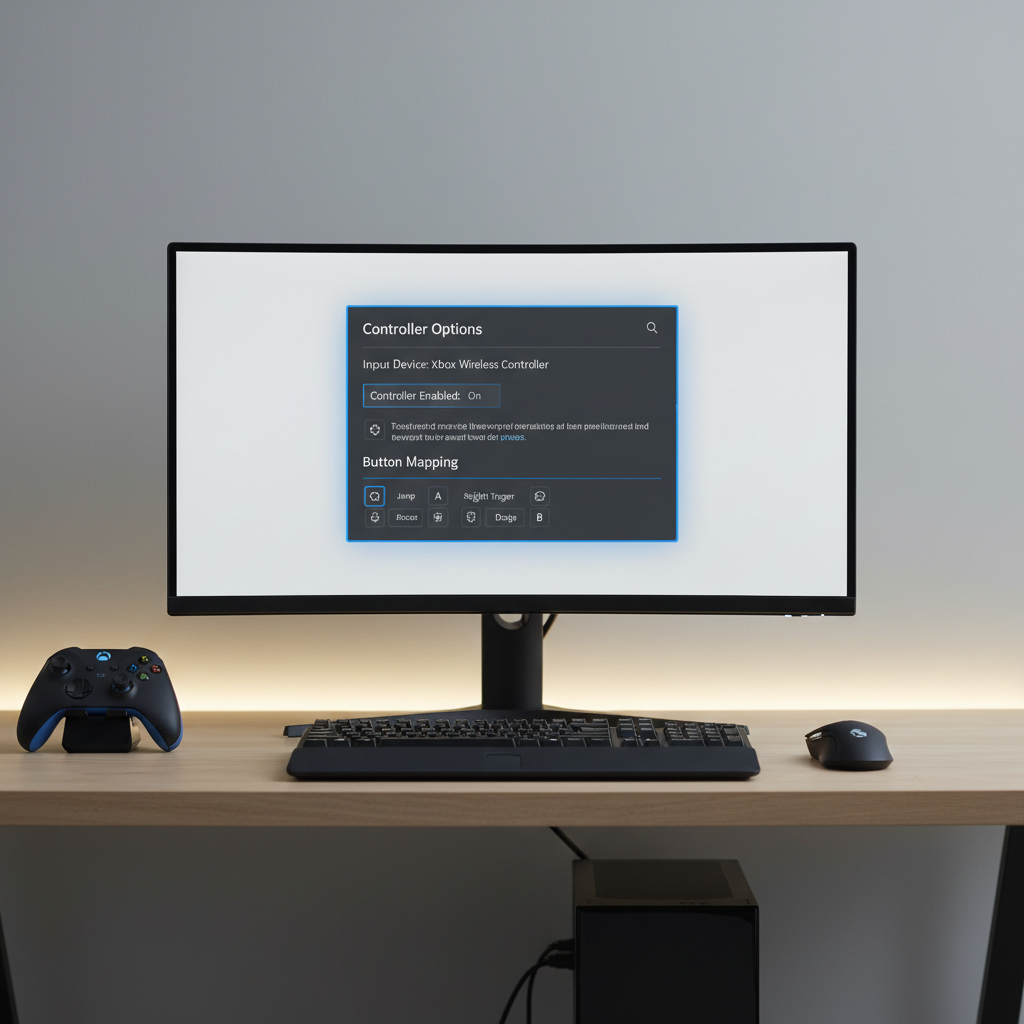
Make sure the game is set to controller mode
Many Epic titles default to keyboard/mouse and require an explicit toggle.
- Look for settings like Controller Enabled, Input Device, or Enable Gamepad.
- If the game supports it, switch button prompts from “Keyboard” to “Controller.”
If you see controller prompts but no input, it’s often a driver or conflict issue; if you never see prompts, it’s often a detection/input-mode issue.
Run Epic Games Launcher and the game with the same permissions
Mixed admin permissions can cause weird device access behavior in some setups.
- If your game runs as Admin, run Epic as Admin too, or turn Admin off for both.
- Keep it consistent, don’t mix.
Check for exclusive/fullscreen quirks
Some games behave better in Borderless Windowed when dealing with input focus.
- Try Borderless or Windowed temporarily.
- Alt-tab back into the game, then press a controller button to “claim” focus.
Fixes by controller type (Xbox, PlayStation, Switch Pro)
Different controllers take different routes into Windows, so the “right” fix depends on what you’re holding.
| Controller | Most reliable connection for Epic titles | Typical fix when it fails |
|---|---|---|
| Xbox One / Series | USB or Xbox Wireless Adapter | Update controller firmware, reinstall device in Device Manager |
| DualShock 4 | USB | Use DS4Windows (if game lacks native support), avoid Steam Input conflicts |
| DualSense (PS5) | USB | Update firmware, try HID-compatible mode via game settings if offered |
| Switch Pro | USB | Use a remapper if the game expects XInput, close Steam to prevent remap conflicts |
Xbox controller: firmware + driver refresh
If you’re hunting for how to fix controller not working on epic games with an Xbox pad, do these two steps before anything else:
- Update controller firmware using the Xbox Accessories app.
- Open Device Manager, uninstall the controller device, then reboot and reconnect.
According to Xbox Support, firmware updates can resolve connectivity and input problems on Windows PCs.
PlayStation controllers: understand XInput vs DirectInput
A lot of Epic games expect XInput (Xbox-style input). DualShock and DualSense often show up as DirectInput unless the game has native PlayStation support.
- If the game supports PlayStation controllers natively, USB usually “just works.”
- If not, tools like DS4Windows can translate input to XInput. That can help, but it also introduces another layer that may conflict with overlays or other remappers.
Practical tip: if you use DS4Windows, make sure Steam is fully closed so Steam Input doesn’t double-translate your buttons.
Switch Pro controller: watch for double mapping
Switch Pro controllers can behave inconsistently across PC games unless a translator layer is used.
- Try USB first.
- If buttons are wrong, you may need an XInput wrapper, but keep it to one tool at a time.
Step-by-step troubleshooting checklist (do this in order)
This sequence is intentionally boring, because it avoids “random fix hunting” and tends to get results faster.
- Step 1: Test the controller in Windows (confirm it’s detected and stable).
- Step 2: Try a different USB cable/port, or re-pair Bluetooth.
- Step 3: Close Steam and disable overlays temporarily.
- Step 4: Launch the game, switch input device to controller (if the option exists).
- Step 5: If PlayStation/Switch controller, decide whether the game needs XInput translation.
- Step 6: Refresh drivers: uninstall controller in Device Manager, reboot, reconnect.
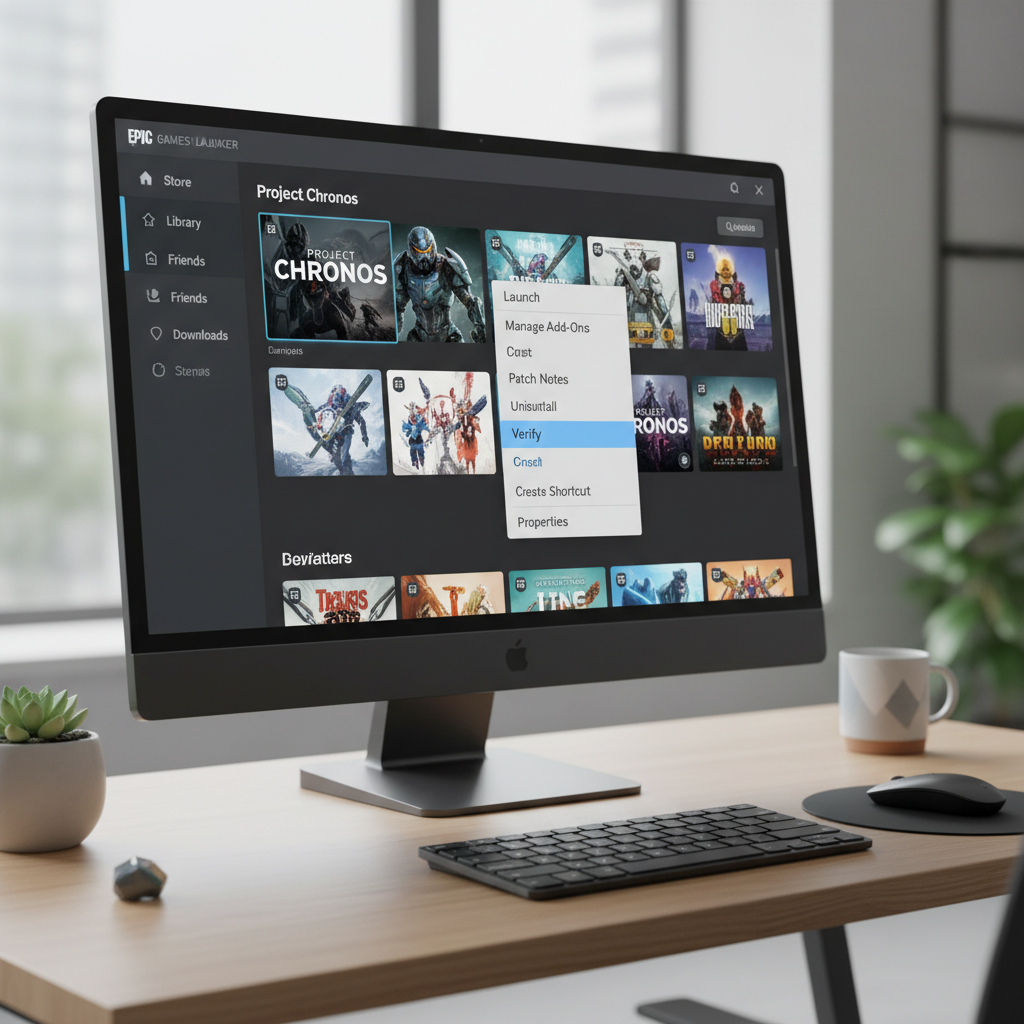
- Step 7: Verify game files in Epic and update the game.
According to Epic Games (Epic Games Support), verifying game files can resolve issues caused by corrupted or missing game data.
Common mistakes that waste time (and what to do instead)
A few patterns show up again and again when people troubleshoot controller input on Epic.
- Mistake: Installing multiple remappers at once. Do instead: Use one translation layer, then test.
- Mistake: Assuming Epic “supports controllers” the way Steam does. Do instead: Treat Epic as a launcher; fix Windows + the game first.
- Mistake: Blaming the controller when it’s a focus issue. Do instead: Try borderless mode and re-focus the game window.
- Mistake: Ignoring low battery on Bluetooth. Do instead: Charge fully or test via USB for a clean baseline.
Key takeaway: if the controller works in Windows but fails only in one Epic game, the cause is usually game-side input settings, conflicting overlays, or XInput/DirectInput mismatch, not a “broken” controller.
When it’s time to get more help (without guessing)
If you’ve done the checklist and the controller still won’t work, you’re likely in a game-specific compatibility issue or a deeper Windows driver problem.
- Check the game’s official support page for controller support notes and known issues.
- Search the exact game name + your controller model + “Epic” to confirm whether native support exists.
- If Windows won’t reliably detect the device, consider contacting the controller manufacturer’s support, especially if firmware updates fail or the controller drops constantly.
If you suspect hardware damage (loose USB port, battery swelling, stick drift so severe it blocks menus), it’s safer to stop forcing connections and consult a repair professional or the manufacturer.
Conclusion: get to a stable setup you can trust
If you came here for how to fix controller not working on epic games, the most consistent results come from a clean baseline: Windows detects the controller reliably, only one input translator is active if you need it, overlays stay out of the way, and the game is explicitly set to controller input.
Your next move: test in Windows, then run the checklist in order without skipping. If you’re still stuck, narrow it down to the specific game, because that’s where compatibility limits usually show up.
FAQ
Why does my controller work on Steam but not on Epic Games?
Steam often adds controller translation and mapping (Steam Input). Epic generally does not, so games that rely on XInput may not accept DirectInput controllers unless the game supports them or you add a translator.
How do I fix Epic Games not detecting my Xbox controller?
Start by confirming Windows detects it, then update firmware in Xbox Accessories, try a different USB cable/port, and uninstall/reinstall the device in Device Manager. If it only fails in one game, verify the game files and check in-game input settings.
Do I need DS4Windows for a PS4/PS5 controller on Epic Games?
Sometimes. If the game has native PlayStation controller support, USB may work without extra tools. If the game expects XInput, DS4Windows can help, but keep Steam closed to avoid input conflicts.
Why are my buttons mapped wrong in an Epic Games title?
Wrong mapping usually points to XInput vs DirectInput mismatch or double translation from two tools. Remove extra remappers, close Steam, then re-test with one clean input path.
How can I stop my controller from disconnecting mid-game?
Use USB to confirm stability first, then address Bluetooth basics: charge fully, re-pair, and avoid power-saving behavior where possible. If it happens across multiple games and PCs, it may be a controller hardware or firmware issue.
Does Epic Games Launcher have a controller setting like Steam Input?
Not in the same way. In most cases, controller handling is up to Windows and the game itself, which is why fixes often live in device settings and the game’s input menu.
What’s the fastest “one thing” to try if nothing works?
Test the controller via USB, close Steam completely, disable overlays, then relaunch the game and switch the input device to controller. That combination removes the most common conflicts quickly.
If you’re trying to get a controller working on Epic Games for a specific title and the fixes feel inconsistent, it can help to write down your controller model, connection type, and what Windows reports, then troubleshoot from that clean baseline instead of stacking tools and hoping it clicks.