
how to clear cache on meta quest 3 is usually the quickest way to deal with laggy menus, apps that keep crashing, or a headset that feels “full” even when you deleted a few games.
Cache is basically temporary files apps keep to load faster, but on Quest headsets it can also turn into stale data that causes glitches, login loops, or weird performance dips after an update. Clearing it often helps without forcing you to fully reset the device.
This guide breaks down what “cache” means on Quest 3, how to clear it in the ways Meta actually allows, and when you should stop troubleshooting and consider a deeper fix.
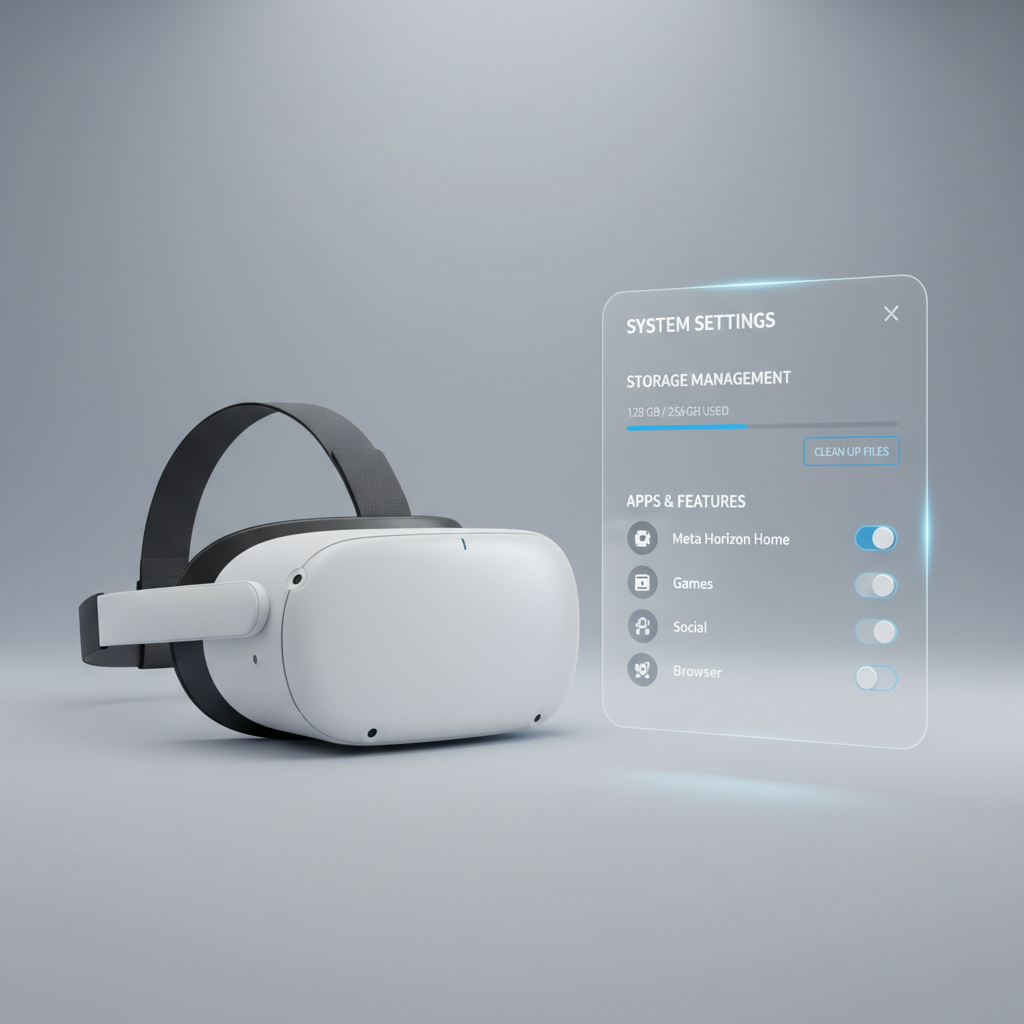
What “cache” means on Meta Quest 3 (and what it does not)
On Quest 3, people say “clear cache” to mean a few different things, so it helps to separate them:
- App cache / temporary data: files an app stores to speed up loading or keep sessions stable. When it corrupts, the app may stutter, crash, or refuse to sign in.
- Browser cache: saved website assets, cookies, and site data in the built-in browser. When it gets messy, websites can load incorrectly or log you out repeatedly.
- System-level cache: on many Android devices you can wipe a “system cache partition,” but Quest 3 does not expose a simple “wipe cache partition” button in normal settings.
So realistically, how to clear cache on meta quest 3 usually means clearing an app’s stored data, clearing the browser’s site data, or doing a restart that flushes temporary memory.
Quick “is cache the problem?” checklist
Before you start deleting data, use this to decide if cache cleanup is worth trying.
- Only one app misbehaves (crashes, black screen, stuck on logo) while others run fine.
- The issue started after an update (app update or headset update) and didn’t exist before.
- Storage is tight and the headset feels slower when opening the library or launching apps.
- Login loops happen in one app or in the browser, even with correct credentials.
- Web pages render weirdly in the Quest browser, but look normal on your phone/laptop.
If your headset hard-freezes everywhere, fails to boot, or controllers stop pairing across the system, you may be dealing with a firmware issue, overheating, or a deeper software conflict, not just cache.
The safest first step: restart (it clears temporary memory)
When people ask how to clear cache on meta quest 3, I usually start here because it’s low-risk and surprisingly effective. A restart clears a lot of temporary state without touching your installed apps.
Standard restart
- Hold the Power button.
- Select Restart.
Forced reboot (if the headset is stuck)
- Hold Power for about 10–15 seconds until the headset shuts down, then power it back on.
According to Meta support guidance, restarting is a common first troubleshooting step for performance and app-loading issues, because it refreshes system processes without wiping your content.

Clear app data (the closest thing to “clear app cache” on Quest 3)
Quest 3 doesn’t always offer a clean, universal “clear cache” toggle per app. In many cases, the practical option is clearing app data, which removes the app’s local files and settings. That can fix corruption, but it may also sign you out or reset preferences.
Before you do it
- Check whether the app supports cloud saves for game progress. Some do, some don’t, and it varies by title.
- If it’s a work app, confirm you know your login method (SSO, email/password, device code).
Typical path in headset settings
Menu names can shift slightly by software version, but the flow is usually similar:
- Open Settings
- Go to Apps (or Applications)
- Select the problem app
- Look for Storage options
- Choose Clear data (or uninstall/reinstall if that’s the only choice)
If you don’t see storage controls, uninstalling and reinstalling the app often achieves the same goal: it removes local cached files and rebuilds them clean.
Clear browser cache and site data (for web issues and login loops)
If your main pain is websites loading wrong, slow web apps, or repeated sign-in prompts, clearing the browser cache is the most direct way to clear cache on meta quest 3 without touching installed games.
What to clear
- Cached images and files: helps with broken layouts and stale site assets.
- Cookies / site data: helps with login loops, but may sign you out.
Typical steps
- Open the Meta Quest Browser
- Open Settings inside the browser
- Find Privacy or Clear browsing data
- Select what you want to delete, then confirm
According to Google (Chrome help documentation), clearing cached files and cookies can resolve site display problems and sign-in issues when stored data becomes outdated or corrupted, and the same concept applies to Chromium-based browsers on other devices.
Choose the right fix: a simple decision table
If you want the shortest path, use this table and don’t overdo it. Clearing more than you need just creates extra re-logins and re-downloads.
| Symptom | Most likely “cache” type | What to do first | What to try next |
|---|---|---|---|
| One game crashes on launch | App local data | Restart headset | Clear app data or reinstall |
| Websites look broken in Quest Browser | Browser cache | Clear cached files | Clear cookies/site data |
| Storage almost full, headset feels sluggish | Mixed temp files + low storage | Free space by uninstalling | Reboot, then reinstall essentials |
| App stuck in login loop | App tokens/cookies | Clear browser cookies (if web login) | Clear app data, re-authenticate |
| System-wide glitches after update | System processes | Restart | Update apps, consider factory reset |
Practical tips so “clearing cache” actually sticks
A lot of people clear something, reopen the app, and the problem returns. That usually means the underlying trigger still exists. These tips help reduce repeat issues.
- Keep 10–15% storage free when possible. Low storage can make app updates and temp file writes unstable.
- Update the app after reinstall before signing in, especially if the store pushed a hotfix.
- Don’t mix multiple account sessions in the same app unless it’s designed for it, stale tokens cause loops.
- Test on a known-good network for login or downloads. Some “cache” complaints are really Wi‑Fi or DNS issues.

Common mistakes to avoid (they waste time or risk data)
Cache cleanup is simple, but a few missteps are common.
- Clearing app data without checking saves: many games rely on cloud saves, but not all, so progress loss is possible.
- Factory resetting too early: it works, but it’s a big hammer. Try restart, reinstall, and browser cleanup first.
- Assuming heat is “cache”: if performance tanks after long sessions, heat or low battery can also be factors, take breaks and let the headset cool.
- Clearing everything every time: repeated full clears can make apps slower because they must rebuild data again and again.
When it’s time to escalate (support, warranty, or factory reset)
If you’ve tried the steps above and the headset still behaves badly, you’re probably beyond a simple “how to clear cache on meta quest 3” fix. Consider escalating when:
- The headset reboots randomly or fails to install updates repeatedly.
- Multiple unrelated apps crash, including system apps.
- You see tracking issues paired with overheating or battery warnings.
At that point, check Meta’s official support steps for your software version and consider opening a support ticket. A factory reset may help in stubborn software corruption cases, but it wipes local data, so it’s worth treating as a last resort unless Meta support recommends it for your situation.
Conclusion: the clean, low-drama way to clear cache on Quest 3
Most of the time, clearing cache on Quest 3 comes down to three moves: restart to flush temporary memory, clear browser data when web pages misbehave, and clear app data or reinstall when one app goes off the rails. Keep it targeted, because the more you wipe, the more you rebuild.
If you want a simple plan, start with a restart, then fix the one problem area, app or browser, and only consider a factory reset when issues spread across the whole system.
Key takeaways: restart first, clear app data only when needed, and protect your saves by checking cloud support before you wipe anything.
If you’re still stuck after doing these steps, it may help to list the exact app name, headset software version, and what you already tried, then bring that to Meta Support or your retailer so troubleshooting stays focused instead of guessy.