
how to fix high ping on wired connection is usually less about “Ethernet being bad” and more about one weak link in the chain: a saturated upload, a misbehaving router, a bad cable/port, or an ISP routing hiccup.
If you rely on wired Ethernet for gaming, Zoom calls, or remote work, high ping feels personal because it breaks the one promise wired networks are supposed to keep: stable latency. The good news is most wired ping problems can be narrowed down quickly if you test in the right order.
This guide focuses on practical checks you can do at home in the U.S. without fancy tools, plus a few “advanced but worth it” fixes like bufferbloat controls and smarter DNS choices. I’ll also point out the spots where it’s probably time to call your ISP or swap hardware.

What “high ping” means on Ethernet (and what it does not)
Ping is latency, the time it takes for a small packet to go from your device to a destination and back. On wired Ethernet, your “in-home” latency should usually be low and consistent, so when ping spikes, the cause is often upstream or load-related, not the cable by itself.
A quick reality check: your ping to a game server in another state will never match your ping to your router in the next room. Distance and routing still matter, even with perfect Ethernet.
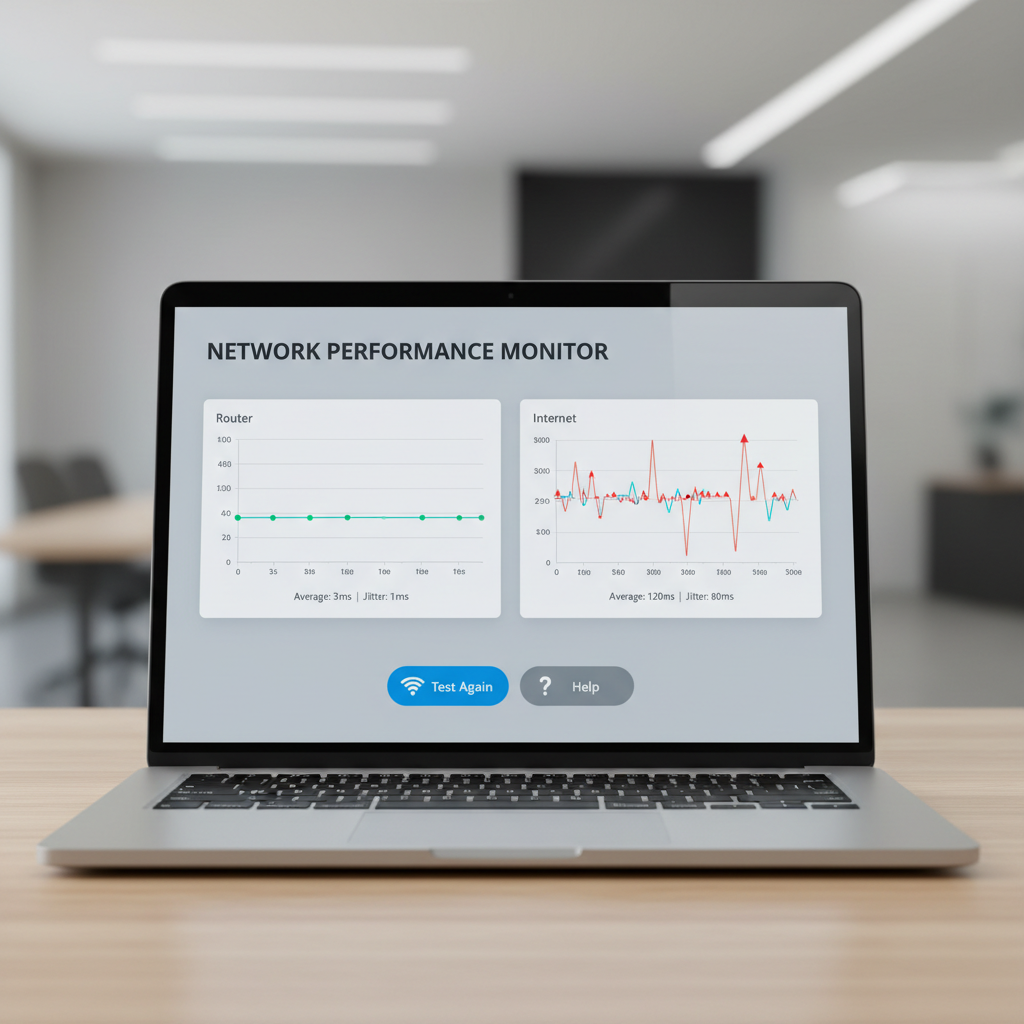
- Good sign: ping to your router is steady (often 1–3 ms), but ping to the internet destination varies.
- Bad sign: ping to your router jumps (e.g., 1 ms to 50+ ms), which points to local congestion, a faulty port/cable, or a struggling router.
Fast triage: locate the bottleneck in 10 minutes
The fastest way to fix wired latency is to figure out where it starts. Don’t change five settings at once, test, then move one hop outward.
Step 1: Ping your router (local hop)
On Windows, open Command Prompt and run ping -n 50 192.168.1.1 (replace with your router gateway). On macOS, use Terminal: ping -c 50 192.168.1.1.
- If this is unstable, stay local: cable, switch, NIC drivers, router CPU load.
- If this is stable, the problem is likely modem/ISP/routing or your connection being saturated.
Step 2: Ping a reliable public DNS IP
Try 1.1.1.1 or 8.8.8.8. If router ping is clean but public ping spikes, you’re leaving your home network and hitting modem/ISP or upstream congestion.
Step 3: Compare “idle” vs “under load”
Start a large upload (cloud backup, file sync, sending a video) and watch ping again. If ping blows up only when uploading or downloading, you’re likely seeing bufferbloat (latency caused by oversized queues in routers/modems).
Common causes of high ping on a wired connection (real-world patterns)
When people ask how to fix high ping on wired connection, they often assume it’s one “mystery setting.” In practice, it’s usually one of these patterns.
- Upload saturation: Video calls, cloud backups, security cameras, or someone else in the house uploading can cause latency to spike.
- Bufferbloat: Your router/modem queues packets too long under load, so everything feels delayed even if speed tests look fine.
- Bad cable/port: Damaged cable, loose connector, or a flaky switch/router port creates retransmissions and jitter.
- Router strain: Older routers can choke on NAT tables, QoS misconfigurations, VPN, or heavy traffic.
- ISP routing/congestion: Peak-hour congestion, neighborhood node issues, or suboptimal routes to certain servers.
- DNS “slowness” confusion: DNS can delay starting connections, but it rarely explains sustained high ping once connected.
According to the Federal Communications Commission (FCC), broadband performance can vary by network conditions and congestion, which is why testing at different times helps separate home issues from upstream problems.
Self-check checklist (before you buy anything)
Work through this list once, in order. It prevents the classic trap of swapping gear when the issue is a single bad cable or an overloaded upload.
- Use a direct Ethernet run from PC/console to router, bypass powerline adapters and unmanaged switches for testing.
- Try a different cable (Cat5e or Cat6) and a different router LAN port, just to rule out simple hardware failure.
- Confirm link speed on your device: it should usually show 1.0 Gbps, not 100 Mbps, if your gear supports gigabit.
- Pause uploads (OneDrive/Dropbox/iCloud, game updates, camera backups) and retest ping.
- Reboot modem and router in the right order: modem first, then router after the modem is fully online.
- Test another device on the same cable, or the same device on a different cable, to isolate the NIC.
Fixes that usually move the needle (with steps)
Pick the section that matches what your triage revealed. If you do everything here “just in case,” you can waste hours and end up unsure what actually helped.
If ping spikes mainly during downloads/uploads: fix bufferbloat
This is the most common wired “why is my ping terrible when someone else is online” situation.
- Enable SQM / Smart Queue Management if your router supports it (often called SQM, CAKE, or FQ-CoDel). Set bandwidth limits slightly below your real speeds, so the router controls the queue instead of the modem/ISP.
- Try QoS carefully if SQM is not available. Many “old style” QoS systems help a little, but some make things worse if misconfigured.
- Cap heavy upload apps (cloud sync, NAS backups) so they don’t hit 100% of upstream bandwidth.
Practical tip: upstream matters more than people expect. Even a small upstream (common on cable internet) can get saturated quickly, and that’s when latency jumps.
If router ping is unstable: simplify the local path
- Replace the Ethernet cable and avoid tight bends or pinched runs.
- Bypass intermediate gear (switches, docks, powerline). Add things back one at a time.
- Update NIC drivers (Intel/Realtek) and router firmware. According to CISA, keeping software updated reduces security and stability risks; firmware bugs can also show up as odd performance.
- Disable “Energy Efficient Ethernet” on some NICs if you see micro-dropouts. It’s not always a problem, but it’s an easy A/B test.
If only certain games/services have high ping: treat it as routing
- Test multiple destinations (game server IP, a nearby city node, a major DNS IP). If only one service is bad, it’s not “your Ethernet.”
- Try a different DNS (Cloudflare, Google, or your ISP). DNS won’t fix route latency, but it can reduce connection setup delays and weird edge cases.
- Consider a reputable gaming VPN only if routing is clearly the issue. Sometimes it helps by taking a different path, sometimes it adds overhead. Keep expectations realistic.
Quick reference table: symptom → likely cause → what to do
| What you see | Likely cause | Best next move |
|---|---|---|
| Router ping spikes | Cable/port, switch, NIC, router overload | Swap cable/port, bypass switches, update firmware/drivers |
| Ping spikes only when uploading | Upstream saturation, bufferbloat | Enable SQM/CAKE, cap uploads, set bandwidth slightly under max |
| Idle ping OK, evenings worse | ISP congestion | Document tests, ask ISP about node congestion, try different plan/tech |
| Only one game/server bad | Routing/peering to that service | Test other servers, share traceroute with ISP, consider VPN trial |
| Speed test high, ping still bad | Queueing/bufferbloat or router processing | Prioritize latency controls (SQM), reduce background traffic |

Common mistakes that waste time (and keep ping high)
A few moves feel productive but often don’t target the real cause.
- Chasing DNS as the main fix for in-game latency. DNS matters for name lookups, not the steady-state ping once connected.
- Upgrading your internet speed tier without addressing bufferbloat. More download speed does not automatically mean lower latency.
- Turning on every “gaming boost” toggle in the router UI. Some features conflict, and a mis-set QoS rule can punish the traffic you care about.
- Testing over Wi‑Fi “for convenience” while diagnosing Ethernet ping. Keep testing consistent, wired end-to-end.
When it’s time to loop in your ISP or a pro
If you’ve confirmed stable router ping, swapped cables, reduced local load, and you still see persistent spikes to multiple public targets, you may be at the edge of what you can fix inside the home.
- Call your ISP if ping worsens at specific times daily, you see packet loss to the first hop outside your router, or your modem signal levels/logs show repeated errors.
- Ask for a line check if you suspect coax/fiber issues. Intermittent physical layer problems often show up as jitter plus occasional loss.
- Consider professional help if you run a more complex setup (managed switches, VLANs, multiple APs, VPN at the router). A small config mistake can create big latency side effects.
If safety comes up, like accessing wiring panels or climbing to reach cabling, it’s reasonable to stop and consult a qualified technician.
Conclusion: the most reliable path to lower wired ping
Most “wired Ethernet high ping” stories end up being bufferbloat under load, a stressed router, or something upstream with the ISP, not Ethernet itself. If you take one action today, run the router ping test, then test again while uploading, that one comparison usually tells you which direction to go.
Key takeaways: keep the local hop stable, control queues with SQM when possible, and document time-of-day patterns before you escalate to your ISP. That’s how you turn frustration into a fix plan.
FAQ
How do I know if my high ping is my router or my ISP?
Ping your router first. If that stays steady but ping to a public IP spikes, the issue is more likely modem/ISP or upstream congestion. If router ping jumps, stay focused on local gear and cabling.
Does a new Ethernet cable really fix high ping?
Sometimes, yes, but only if the existing cable or connector causes errors or renegotiates to 100 Mbps. It’s a cheap test, just don’t assume it’s the default explanation if your router ping is already stable.
Why is my ping fine until someone starts streaming or uploading?
That pattern often points to bufferbloat or saturated upstream bandwidth. Enabling SQM or setting sane upload limits typically helps more than upgrading download speed.
Will changing DNS fix high ping on a wired connection?
It can help pages and apps start faster, but it usually won’t reduce in-game ping once you’re connected to a server. Treat DNS as a “nice cleanup,” not the core latency fix.
Is QoS worth turning on for gaming over Ethernet?
If your network sees congestion, QoS can help, but results depend on the router implementation. SQM-style QoS is often more effective for latency than older priority-only systems.
Should I use a gaming VPN to reduce ping?
Only when routing is the culprit and your normal path is inefficient. A VPN can improve the route in some cases, but it can also add latency, so it’s worth a short trial with easy rollback.
What ping is “good” for wired gaming in the U.S.?
It depends on distance to the server and the game, but consistency matters as much as the number. A steady 40 ms can feel better than a 20 ms connection that spikes to 150 ms.
If you’re still stuck after these checks, it can help to share your router ping results, an idle vs under-load test, and which destinations show spikes, that package of info makes it much easier to recommend the next fix without guessing.