
how to fix vr controller drift usually comes down to one of three things: dirty sensors, a calibration mismatch, or tracking conditions your headset can’t interpret cleanly.
It’s worth taking seriously because drift isn’t just annoying, it changes how you move in VR, makes you over-correct, and can even trigger motion discomfort for some people. The good news is most drift reports are fixable at home without replacing anything.
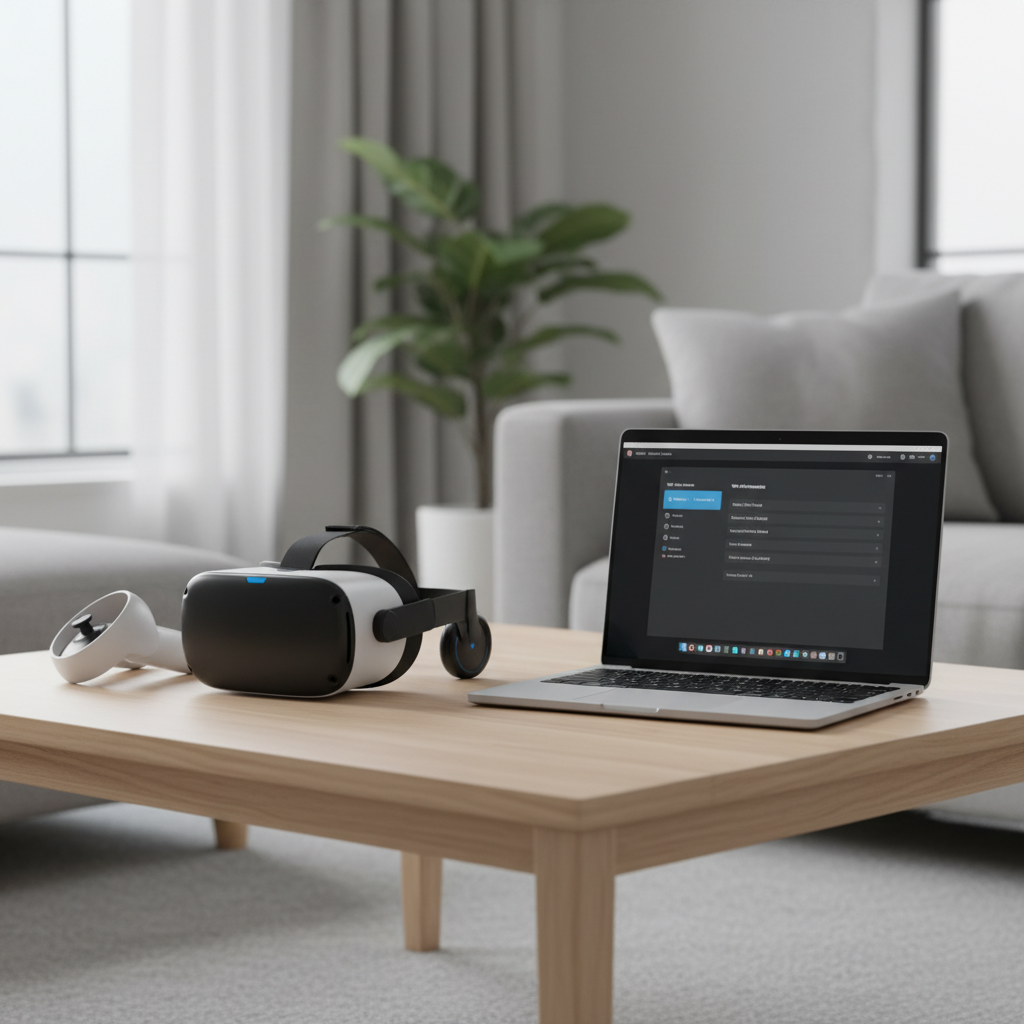
What trips people up is doing the “big” steps first, factory resets, reinstalling apps, even buying new batteries, while skipping the small checks that actually cause drift in real life. This guide walks through a practical order: identify your drift type, fix the common causes, then decide when hardware service makes more sense.
What “controller drift” means in VR (and why it happens)
In VR, “drift” can look like a thumbstick that keeps walking, a controller that slowly slides in space, or a hand that jitters and never settles. Those are different problems, and they respond to different fixes.
- Analog stick drift: your character moves or turns without touching the stick, common on controllers with worn potentiometers or dirty stick modules.
- Tracking drift: the controller position shifts, floats, or snaps, often caused by poor lighting, reflective surfaces, occlusion, or camera/IR tracking issues.
- IMU/gyro drift: subtle rotational creep, sometimes improved by recalibration or firmware updates.
According to Meta (Quest support documentation), inside-out tracking can degrade when lighting is too dim, too bright, or when the headset cameras can’t “see” stable features in the room. That’s tracking drift, not a broken thumbstick.
Quick self-check: identify your drift type in 2 minutes
Before you tweak settings, do a fast isolation test. You want to learn whether you’re fixing the stick, the tracking, or both.
Mini checklist
- Does drift happen in the home menu (not just one game)? If yes, it’s system-level.
- Does your character move while the controller sits still? Points to analog stick drift.
- Does the controller “float” when you wave it, or lose position when close to your body? Points to tracking/occlusion.
- Does it get worse in one room or at night? Points to lighting and reflective surfaces.
- Does it improve right after a restart but returns later? Could be calibration, firmware, or marginal hardware.
If you’re unsure, record 10 seconds of video through the headset’s capture feature (if available) and watch whether the stick input moves on its own or the controller model shifts in space.
Fix tracking drift first: lighting, mirrors, and “camera confusion”
If your issue looks like the controller drifting in space, fix the environment before touching deadzones. Inside-out tracking relies on your headset cameras recognizing the room and the controller LEDs/markers.
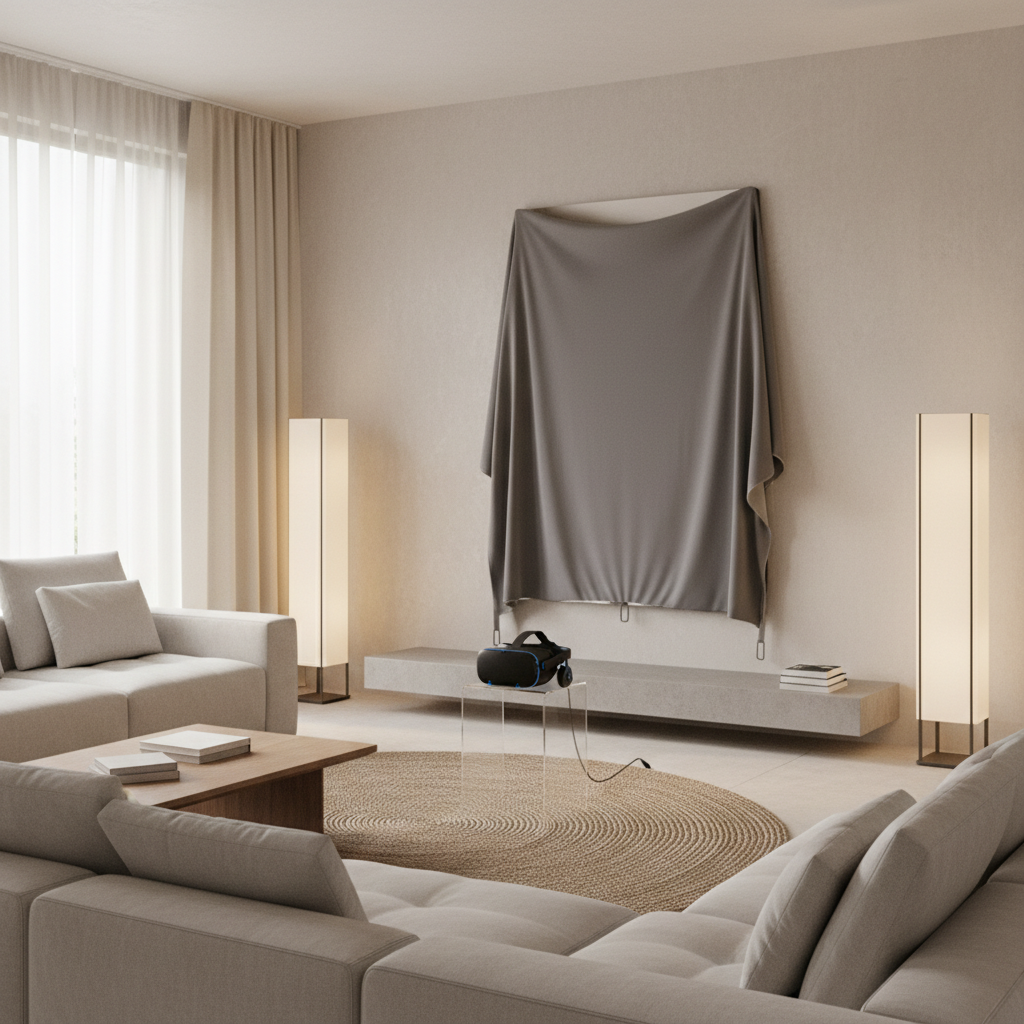
Here’s what usually helps quickly:
- Use steady, even lighting: avoid direct sunlight into cameras and avoid very dim rooms. A couple lamps often beat one harsh overhead light.
- Remove reflective troublemakers: mirrors, glossy TVs, framed posters, and windows can bounce IR/light and confuse tracking. Temporarily cover them and re-test.
- Add visual “features”: blank white walls can be hard for camera tracking. A rug, bookshelf, or wall art sometimes improves stability.
- Keep controllers in view: tracking can degrade when hands sit behind your back, under a blanket, or tight to your chest for long periods.
According to Valve (SteamVR support guidance), reflective surfaces and inconsistent lighting can cause tracking instability. Even if you’re not on SteamVR, the principle holds: sensors hate unpredictable reflections.
Fix analog stick drift: cleaning, deadzones, and recalibration
If your thumbstick is “walking” on its own, you’re in the analog drift lane. Many cases are debris around the stick module or wear over time.
Step-by-step (safe, realistic order)
- Restart and re-pair: power cycle the headset, then re-pair controllers if your platform supports it. It sounds basic, but it clears odd input states.
- Check controller updates: install firmware updates in the companion app/headset settings if available. Buggy input filtering can show up as drift.
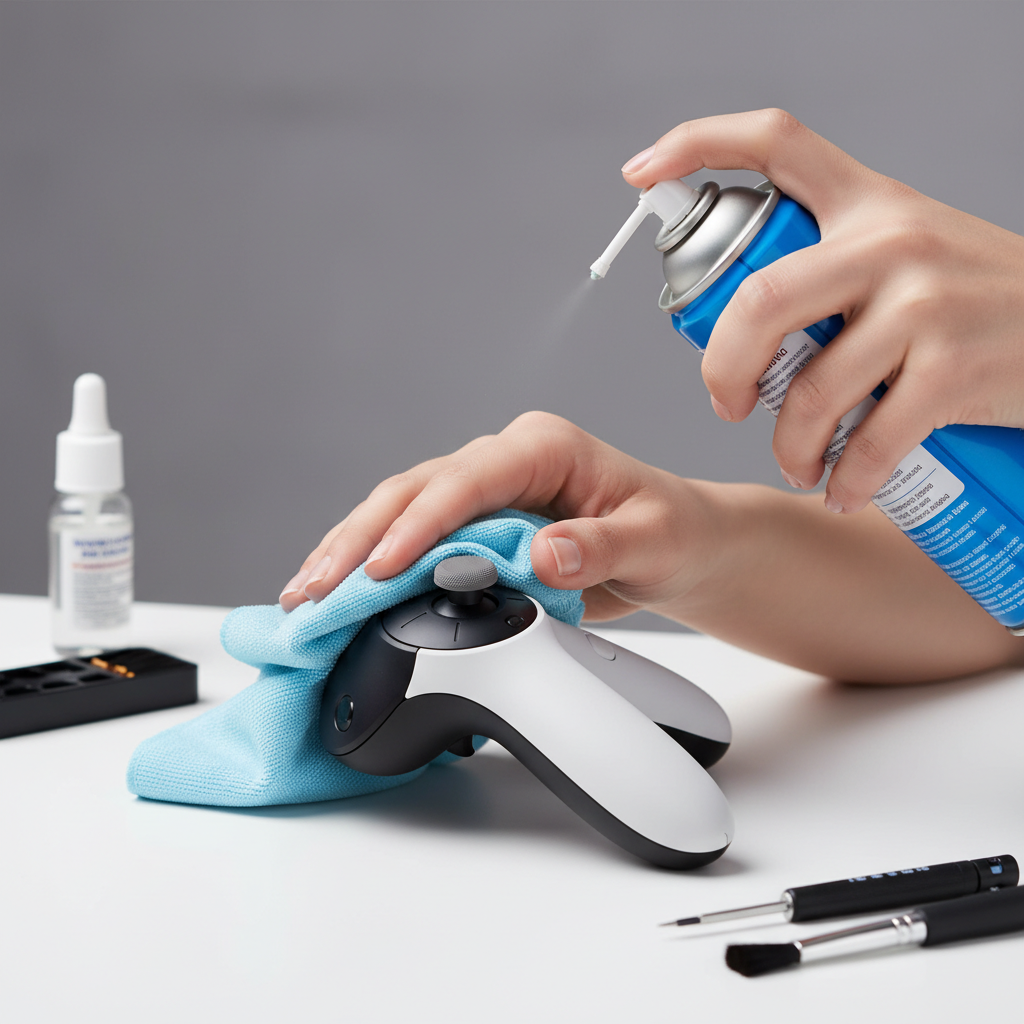
- Clean around the stick: rotate the stick fully, blow out dust with compressed air. If you use isopropyl alcohol (commonly 70%+), use a small amount on a cotton swab, keep it away from batteries and seams, and let it dry fully.
- Adjust deadzone: many VR platforms/games allow a thumbstick deadzone setting. Increase slightly until the movement stops, but don’t overshoot or you’ll lose fine control.
Deadzone is basically a “no input” buffer near the stick center. If you’re learning how to fix vr controller drift, this is one of the highest-leverage tweaks when the stick is only drifting a little.
Use this table to match the symptom to the most likely fix
Drift troubleshooting gets faster when you stop guessing. Use the symptom to pick the next action.
| What you see | Most likely cause | Try this first |
|---|---|---|
| Character slowly walks/turns with hands still | Analog stick drift | Clean stick area, then raise deadzone slightly |
| Controller “floats” or slides in space | Lighting/reflections or occlusion | Even lighting, cover mirrors/TV, keep hands in view |
| Controller jitters near a window or bright lamp | Camera exposure/contrast issues | Close blinds, change lamp angle, move play space |
| Drift happens only in one game | Game settings or input mapping | Reset in-game controls, check deadzone settings |
| Drift improves after battery swap | Power instability or weak batteries | Use fresh name-brand batteries or fully charge pack |
Platform-specific tweaks that often help (Quest, PS VR2, SteamVR)
The exact menus vary, but the logic stays consistent: refresh tracking, refresh controller pairing, then tune input.
Meta Quest (common steps)
- Clear and re-draw Guardian: if your boundary got “learned” in bad lighting, rebuild it under stable light.
- Clean headset tracking cameras: use a microfiber cloth, gentle pressure only. Smudges can look like drift.
- Remove external IR sources: some decorative lights and certain cameras can interfere in some setups.
PlayStation VR2 (common steps)
- Improve room features: PS VR2 tracking likes textured environments. Add a mat or reposition so cameras see more detail.
- Recalibrate play area: redo scanning if drift started after moving furniture.
SteamVR / PC VR (common steps)
- Re-run room setup: especially after moving base stations or changing play space.
- Check USB/power management: Windows power saving can sometimes cause intermittent device behavior. Disable selective suspend for critical USB devices if you know what you’re doing.
According to Sony (PlayStation support), keeping the play area well lit and free of reflective surfaces can help tracking performance. If you only change one thing, change the room lighting first.
Common mistakes that waste time (or make drift worse)
These show up a lot, and they can turn a small problem into a longer weekend project.
- Cranking deadzone to hide a tracking problem: it may stop movement, but it won’t fix floating hands.
- Using too much liquid cleaner: moisture inside the stick module can create new issues. Less is more.
- Ignoring battery quality: weak or inconsistent batteries can cause odd behavior on some controllers. If drift is random, test with fresh batteries.
- Testing in a “bad room”: if you troubleshoot at night with dim light, then play in daylight, you’ll chase ghosts.
Also, don’t underestimate the “one-game problem.” Some titles have aggressive locomotion smoothing, custom input curves, or buggy controller profiles after an update. Reset controls inside that game before you conclude hardware failure.
When to stop troubleshooting and consider repair or support
If you’ve worked through environment fixes, cleaning, deadzones, and updates, and drift still returns quickly, hardware wear becomes more likely. Thumbstick modules can degrade, and tracking LEDs/sensors can fail, especially after drops.
- Seek manufacturer support if the controller is under warranty, drift is severe, or you see other symptoms like random disconnects.
- Consider professional repair if you’re outside warranty and drift impacts most sessions. DIY stick replacement exists for some models, but it involves risk, voiding warranty, and small parts.
- Ask a qualified technician if you suspect swelling batteries, overheating, or physical damage. Safety issues are not a “try one more tweak” situation.
For many people, the practical “line” is simple: if you can’t get stable input for 15 minutes in a controlled test room, it’s time to stop iterating and open a support ticket.
Key takeaways and a simple action plan
If you only remember a few things, make them these. Most drift fixes succeed because they follow the right order, not because they’re complicated.
- Match the fix to the drift type: tracking drift and stick drift look similar but behave differently.
- Fix the room first: steady lighting and fewer reflections solve a surprising amount.
- Then tackle the stick: light cleaning and a small deadzone bump often beat extreme resets.
Try this tonight: test in the home menu, adjust lighting and cover reflective surfaces, then clean the thumbstick and set a modest deadzone. If you still wonder how to fix vr controller drift after that, collecting a short video and device details will make support far faster and less frustrating.
If you want a more hands-off route, many manufacturers provide guided diagnostics and repair options, and it can be worth using those tools when drift keeps returning after basic cleaning and recalibration.