
best vr office apps 2026 is less about chasing whatever is new and more about finding VR tools that stay stable during real work: meetings that do not glitch, screens you can read for hours, and workflows that do not fight your laptop.
If you tried “working in VR” before, you might remember the pain points: tiny text, awkward keyboard switching, apps that feel like demos, and coworkers who cannot hear you clearly. The good news is that the category has matured, and a few apps now feel genuinely office-ready.
This guide sorts VR office apps by what they actually help with, virtual monitors, meetings, whiteboarding, writing, and focus, then gives you a practical way to choose based on your job and tolerance for friction.
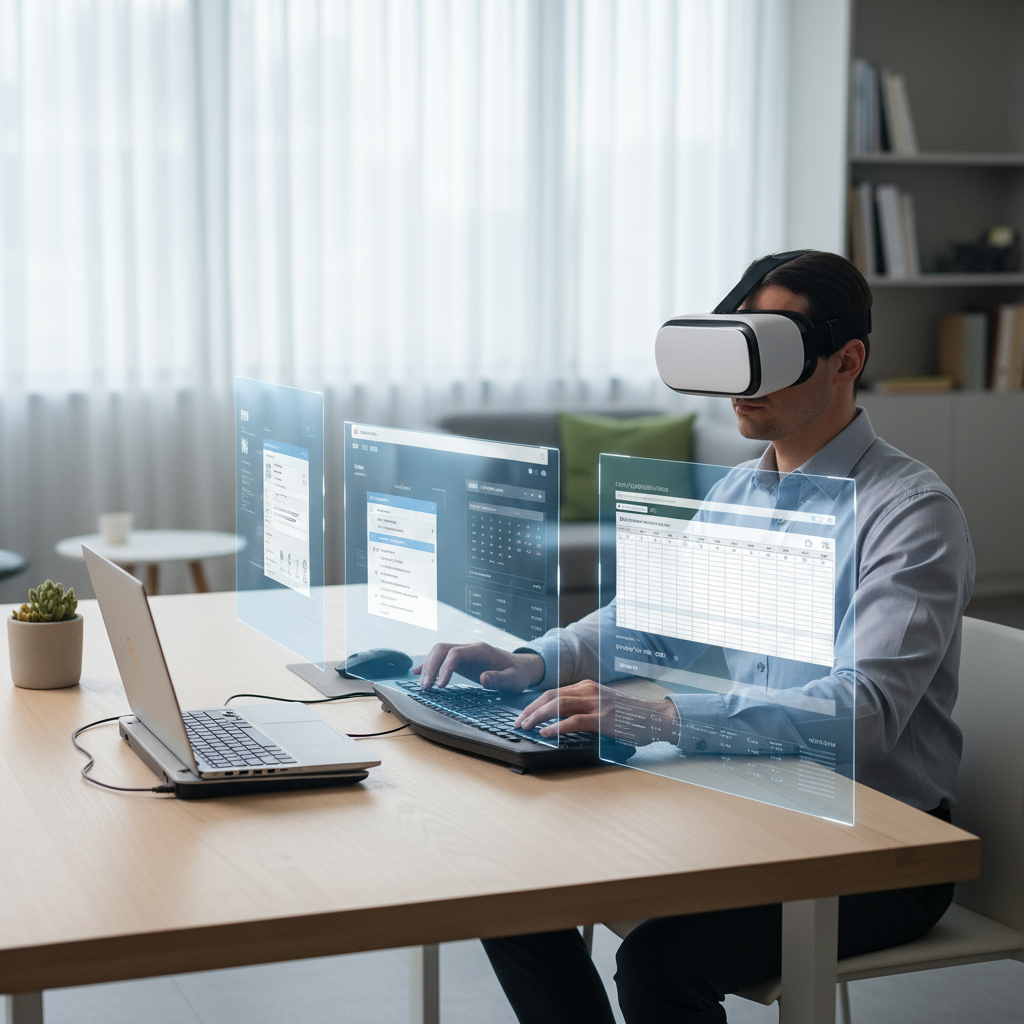
What “VR office apps” really need to do in 2026
Most people do not need a “metaverse.” They need a predictable work cockpit. In practice, VR office apps succeed when they handle a few boring but critical jobs well.
- Readable screens: sharp text, stable scaling, and minimal shimmer on small fonts.
- Fast window control: pin, resize, snap, and switch apps without hunting through menus.
- Reliable audio: echo control, consistent mic levels, and clear voice priority.
- Keyboard and mouse flow: quick passthrough or tracked keyboard, no constant “where are my hands?” moments.
- Privacy: easy ways to hide notifications or prevent shoulder-surfing in shared spaces.
According to OSHA, ergonomics aims to fit work to the person, which matters even more when your “desk” becomes a headset and virtual screens. If VR causes discomfort, nausea, or neck strain, adjusting duration and setup, or asking a professional for guidance, often beats forcing longer sessions.
Quick comparison table: best VR office apps 2026 (by job-to-be-done)
This table is intentionally practical. It does not crown one winner, it helps you pick a stack that matches your day.
| Use case | Apps to shortlist | Why people pick them | Watch-outs |
|---|---|---|---|
| Virtual monitors + “VR desk” | Meta Horizon Workrooms, Immersed, Virtual Desktop | Multi-screen workflows, focus spaces, remote PC access | Text clarity varies by headset; battery planning matters |
| Team meetings | Zoom (VR options where available), Microsoft Teams (VR/mesh experiences where available), Workrooms | Familiar meeting controls, better adoption in mixed teams | Some features differ from desktop clients |
| Whiteboarding + ideation | Figmin XR, Microsoft Mesh experiences (where available), Workrooms whiteboard | Spatial thinking, sticky notes, big-room collaboration | Export formats and permissions can be limiting |
| Solo writing + deep focus | Immersed, Workrooms, headset “focus” environments | Less distraction, controlled environment, big virtual canvas | Long sessions may need comfort tuning |
| Remote PC productivity | Virtual Desktop, Immersed (streaming), vendor remote desktop tools | Run full Windows/macOS apps via streaming | Network quality can make or break the experience |
The best VR office apps 2026: what each is good at
Instead of pretending every app replaces your entire office suite, treat them like “layers”: one for screens, one for meetings, one for brainstorming. That mindset reduces frustration fast.
Meta Horizon Workrooms (meetings + shared screens)
Workrooms often works best when your team needs a simple VR meeting room that still respects reality: screen share, whiteboard, and a sense of presence without overcomplicating the workflow.
- Best for: recurring team syncs, lightweight workshops, shared whiteboarding.
- Why it makes the shortlist: solid “room” concept, collaboration-first design.
- Common friction: mixed-device teams may still prefer a standard video-call client.
Immersed (multi-monitor productivity + focus)
Immersed is popular for the thing people actually want from VR work: multiple big screens, focus environments, and a sense of separation from a noisy room. Many users treat it like a portable multi-monitor rig.
- Best for: coding, writing, spreadsheets, research, anyone who lives in multiple windows.
- Why it makes the shortlist: flexible monitor layouts, “work mode” vibe.
- Common friction: streaming quality depends heavily on your Wi‑Fi and PC load.
Virtual Desktop (remote PC clarity + low fuss)
Virtual Desktop tends to appeal to people who just want their computer in VR with minimal ceremony. It is often used for remote PC access, and for some setups it can feel more straightforward than full “office world” apps.
- Best for: remote PC workflows, quick sessions, running specific desktop apps.
- Why it makes the shortlist: simplicity and flexibility.
- Common friction: you may need to tinker with bitrate and router placement.
Figmin XR (spatial whiteboarding and thinking)
If your work involves mapping ideas, Figmin XR can feel more natural than forcing 2D sticky notes to do a 3D job. It is less “office suite” and more “creative war room.”
- Best for: product planning, creative direction, workshop facilitation.
- Why it makes the shortlist: strong spatial canvas, satisfying manipulation of objects.
- Common friction: exporting/sharing can be a deciding factor for enterprise teams.

A simple self-check: which VR office setup fits your work?
Before you commit to any app, answer these quickly. Your “yes” answers point to the right category.
- I need 2–5 screens at once → prioritize Immersed or Workrooms; consider Virtual Desktop for simpler streaming.
- I run long meetings and workshops → prioritize Workrooms plus your standard video platform for fallback.
- I mostly write, review docs, and email → focus environments matter more than “metaverse” features.
- I must use specific Windows/macOS software → treat VR as a remote desktop problem, not an app replacement.
- I get motion sick easily → choose calmer environments, reduce movement, keep sessions shorter.
Also be honest about adoption: if your coworkers will not wear headsets, your best VR office apps 2026 stack should still work with flat-screen participants without making them feel like second-class attendees.
Practical setup steps that make VR work feel “office-grade”
The app choice matters, but the setup usually decides whether you keep using VR after the first week.
1) Make text readable before you do anything else
- Increase font sizes in your OS and browser, then reduce only if it still feels crisp.
- Prefer fewer, larger screens over many tiny ones, at least early on.
- Keep your virtual screens at a comfortable distance; too close often causes eye strain.
2) Fix audio like you would for a podcast
- Choose one mic input and stick to it; frequent switching causes inconsistent levels.
- Use headphones when possible to reduce echo, especially in shared spaces.
- Do a 30-second recording test before important meetings.
3) Plan for battery and interruptions
- Have a charging plan if sessions run long, VR work ends early when power runs out.
- Turn on “do not disturb” modes to avoid notification chaos in virtual screens.
4) Add a “panic exit” routine
- Know how to switch to passthrough quickly.
- Keep your phone accessible for MFA codes and urgent messages.
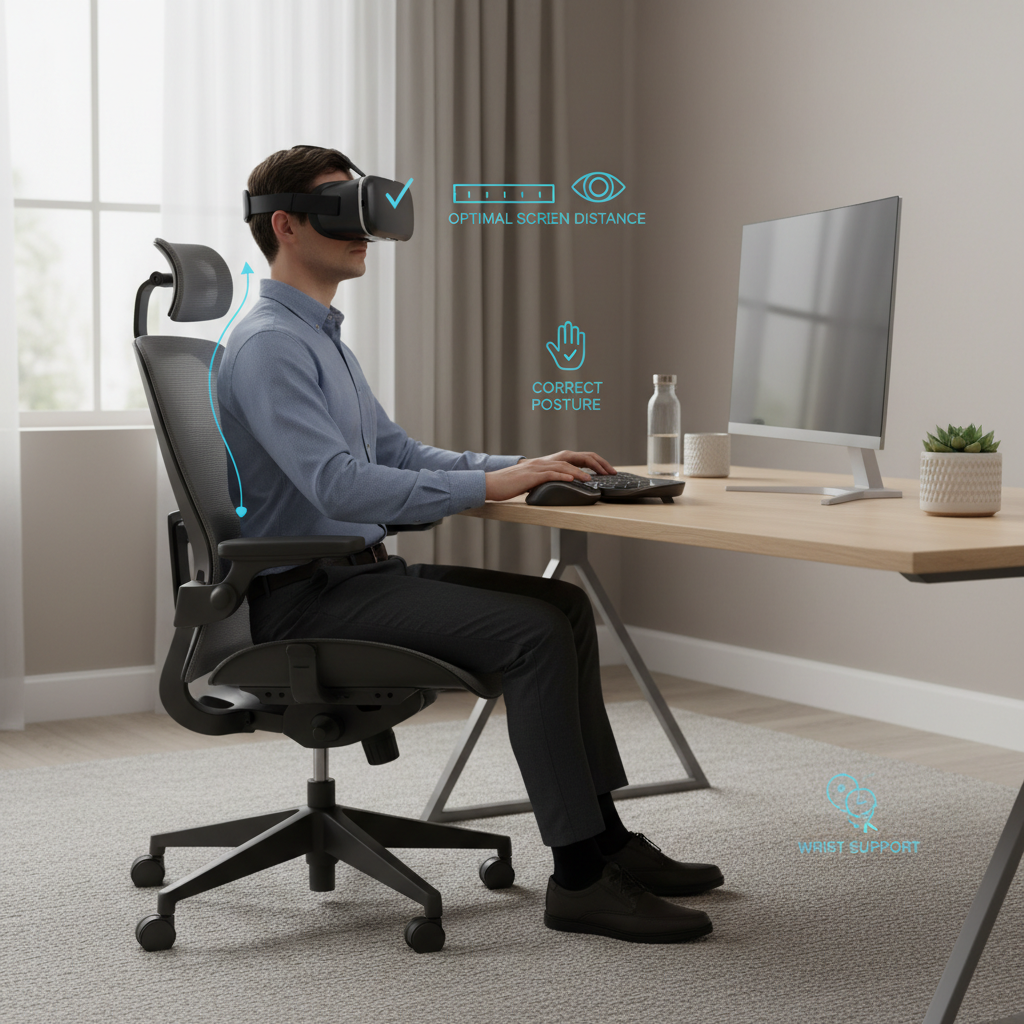
Comfort, safety, and privacy: what people underestimate
VR “office” work has a comfort ceiling. When you hit it, productivity drops fast, and people blame the app when the real culprit is fit, posture, or session length.
- Neck and face pressure: adjust straps, consider counterweights, and take breaks. If pain persists, consulting a clinician may be sensible.
- Eye strain: reduce glare, enlarge text, and avoid marathon sessions early on.
- Motion discomfort: avoid artificial locomotion for work apps when possible, keep environments stable.
- Onlookers and privacy: assume people can see your real-world keyboard and maybe hear sensitive calls, choose a private room for confidential work.
According to FTC, privacy practices and data handling should be evaluated when you adopt new digital tools, and VR apps can collect additional sensor signals beyond typical desktop software. For workplace use, checking admin controls and policy fit is worth the time.
Key takeaways and a realistic “best” recommendation
If you want a clean starting point, do not overbuy complexity. Many people land on a two-app rhythm: one app for virtual monitors, one for meetings.
- For most solo productivity: Immersed or Virtual Desktop, depending on whether you want a full VR “work environment” or a simpler remote PC view.
- For VR-first team collaboration: Meta Horizon Workrooms, with a standard video-call backup for mixed teams.
- For ideation sessions: Figmin XR when spatial brainstorming is truly the point.
The best VR office apps 2026 choice is the one you will still use on a normal Tuesday, not just the one that looks impressive in a demo.
Conclusion: how to pick your shortlist this week
Pick one primary workflow, meetings or multi-monitor work, then test two apps for 30–60 minutes each, with your real documents and your real network. That tiny “trial with real stuff” reveals more than any feature list.
If you do one thing after reading this, make it this: optimize readability and comfort first, then evaluate collaboration features. When VR feels physically easy, productivity features finally matter.
FAQ
- What are the best vr office apps 2026 for remote desktop work?
For many setups, Virtual Desktop and Immersed are the most common starting points because they focus on getting your existing computer workflow into VR. Your network stability usually decides which feels better. - Can VR office apps replace my laptop setup?
Sometimes for specific tasks, but many people still rely on a laptop for quick typing, file management, and troubleshooting. A hybrid setup is more realistic for most jobs. - Which VR office app is best for meetings with non-VR coworkers?
Look for tools that let others join from a browser or standard client, or run VR alongside your usual meeting platform. In many workplaces, adoption matters more than immersion. - Do VR office apps work for spreadsheets and finance work?
They can, especially if text clarity is strong and your app supports stable multi-monitor layouts. If your job demands tiny fonts and rapid context switching, you may need larger virtual screens and shorter sessions. - How do I reduce eye strain when using VR for work?
Start with larger fonts, fewer screens, and frequent breaks. If you have a vision condition or discomfort persists, it is reasonable to consult an eye care professional. - What internet speed do I need for VR remote desktop apps?
Speed helps, but consistency matters more: good Wi‑Fi coverage, low interference, and a stable router setup. If you see artifacts or lag, adjusting bitrate and router placement often beats changing apps. - Is it safe to work in VR for hours?
It depends on comfort, fit, and your body’s response. Many people do better with shorter blocks and breaks; if you notice headaches, nausea, or pain, dialing back and asking a professional for advice is sensible.
If you are trying to choose between a couple of options and want a more “no-surprises” path, start by listing your top three tasks, then match them to one monitor-focused app and one meeting-focused app, you will get a cleaner result than hunting for a single app that claims to do everything.