
How to play pc games on mobile usually comes down to one thing: streaming the game from a PC (or a cloud server) to your phone with low enough lag that it still feels like a real gaming session.
If you have a solid PC but you’re stuck on the couch, traveling, or sharing the main screen at home, mobile streaming can be a surprisingly practical way to keep playing. The catch is that small setup choices, like the wrong network band or an overly aggressive resolution, can make it feel stuttery and frustrating.
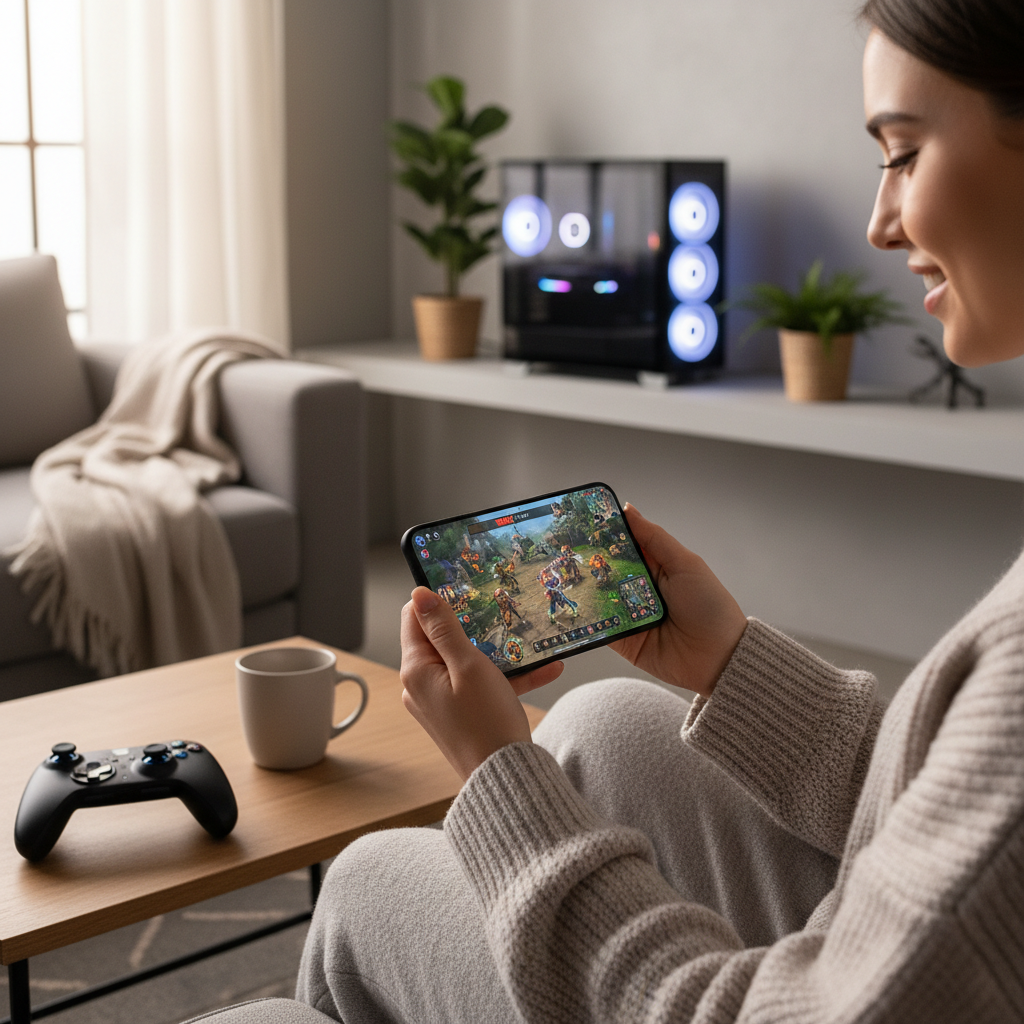
This guide focuses on real-world streaming: what options exist, what to check before you start, and the steps that usually fix choppy video or input delay. You’ll also get a quick comparison table and a short checklist so you can decide what fits your setup.
What “mobile streaming” actually means (and the 3 common setups)
When people ask how to play pc games on mobile, they often mix three different approaches. They look similar on the phone screen, but the requirements and costs differ.
- Local PC-to-phone streaming: your gaming PC runs the game at home, your phone receives the stream over Wi‑Fi (or cellular with extra steps). Great quality if your home network is strong.
- Cloud gaming to phone: a remote server runs the game, you stream it like video. You rely more on internet quality than on your home PC.
- Remote desktop “workarounds”: general remote access tools can run games, but they’re often worse for latency and controller support compared to gaming-focused tools.
According to the Federal Communications Commission (FCC), latency and network congestion can materially affect real-time applications. Gaming streams fall into that category, so your network setup matters as much as your app choice.
Quick comparison table: pick the right path
If you’re deciding between local streaming and cloud services, this is the fastest way to narrow it down.
| Option | Best for | What you need | Main tradeoff |
|---|---|---|---|
| Local PC streaming | Owning a capable gaming PC, playing at home | PC on Ethernet (ideally), strong Wi‑Fi 5/6 | Setup + home network quality |
| Cloud gaming | No gaming PC, travel, simple start | Fast internet, stable ping, subscription (often) | Queue times, library limits, internet dependency |
| Remote desktop tools | Occasional use, non-competitive play | Any PC + app | Higher latency, weaker controller handling |
If you already have a gaming PC at home, local streaming is usually the best “feel for the money.” If you don’t, cloud gaming can still solve how to play pc games on mobile with fewer moving parts.
Before you start: a quick self-check for smooth streaming
Most bad experiences come from a few predictable bottlenecks. Run this checklist before you blame the app.
Network and hardware checklist
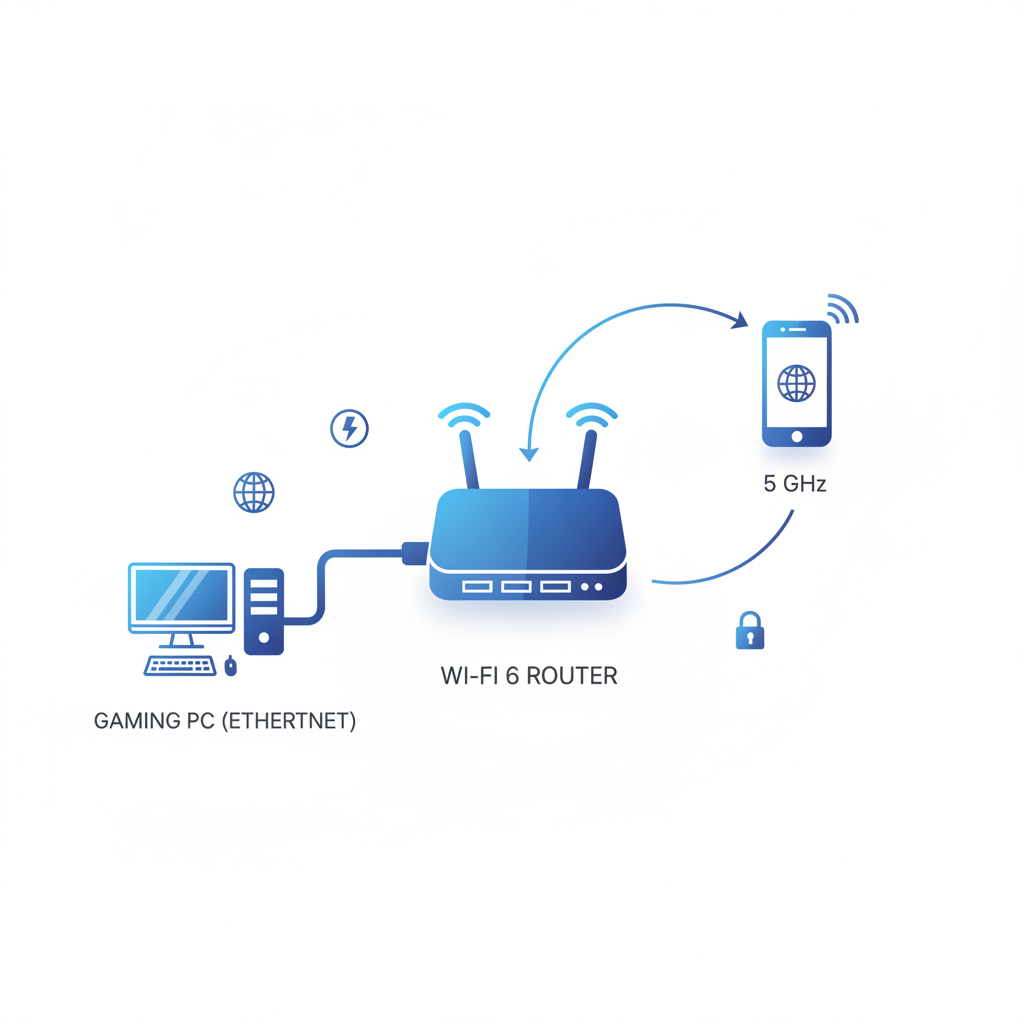
- PC connected via Ethernet to your router (recommended). Wi‑Fi on both ends often adds avoidable instability.
- Phone on 5 GHz Wi‑Fi (or Wi‑Fi 6/6E). 2.4 GHz reaches farther but tends to be slower and more crowded.
- Router placement makes sense: not inside a cabinet, not behind a TV, not on the floor.
- Controller ready: Bluetooth controller or a phone gaming grip. Touch controls work for some genres, but not for everything.
- Power settings: keep the PC from sleeping; on phone, disable aggressive battery saver modes while streaming.
“Feels bad” symptoms and what they usually mean
- Blurry video: bitrate too low, Wi‑Fi weak, or resolution set too high for your network.
- Input delay: Wi‑Fi congestion, PC on Wi‑Fi, phone on 2.4 GHz, or too many hops when playing away from home.
- Random stutters: router load, background downloads, or the PC hitting 100% CPU/GPU.
How to set up local PC-to-mobile streaming (most common method)
This is the “my PC runs the game, my phone is the screen + controller” method. The exact app varies, but the workflow stays consistent.
Step-by-step setup (practical version)
- Update GPU drivers and OS on the PC. This reduces weird encoder and capture issues.
- Plug the PC into the router with Ethernet if possible. If you can only use Wi‑Fi, prioritize 5 GHz and strong signal.
- Install a streaming host on the PC (the program that captures the game and encodes it).
- Install the companion client on your phone and pair it with your PC on the same network.
- Pair a controller to the phone via Bluetooth or USB-C. Then confirm the app detects it.
- Start conservative settings: 720p or 1080p, 60 fps if stable, medium bitrate. You can push higher after it feels smooth.
According to NVIDIA, hardware video encoding (like NVENC) can offload streaming workloads from the CPU, which often helps maintain stable performance while gaming and streaming at the same time.
Recommended starting settings (you can adjust later)
- Resolution: 1080p if your Wi‑Fi is strong, otherwise 720p
- Frame rate: 60 fps for action games, 30–60 fps for slower titles
- Bitrate: medium first, then raise until artifacts disappear without adding stutter
For many households, this setup is the most satisfying answer to how to play pc games on mobile because you keep your existing library and PC graphics settings, while the phone becomes the portable endpoint.
How to play on mobile when you’re away from home (and why it’s harder)
Playing from another Wi‑Fi network or over cellular is possible, but it’s where “it worked at home” starts breaking.
- You’re adding distance and routing complexity, which tends to increase latency.
- Upload speed at home matters now, not just download speed.
- NAT/firewall settings can block a clean connection unless the app uses relay servers or you configure access.
A realistic approach: aim for playable, not perfect. If you’re trying to play competitive shooters on a hotel Wi‑Fi network, you may be disappointed even with the best setup.
According to Apple Support, Bluetooth accessories and Wi‑Fi performance can be impacted by nearby interference and network conditions. In practice, that means crowded environments can degrade controller responsiveness and stream stability.
Cloud gaming on a phone: what to check before you pay for a plan
Cloud services can be the quickest route to how to play pc games on mobile when you don’t have a gaming PC, or you don’t want to keep a PC running at home.
What you should verify upfront
- Game library fit: the service must support the specific games you care about, not just the genre.
- Input method: confirm controller support; some titles tolerate touch, many don’t.
- Peak-hour reliability: queues and quality swings happen, especially at busy times.
- Data usage: streaming can consume a lot of data, so unlimited plans or Wi‑Fi are safer.
If your internet is stable and your expectations are realistic, cloud gaming can feel surprisingly close to local streaming, but the “bad day” experience can be worse because you have fewer knobs to turn.
Troubleshooting: fixes that actually move the needle
When streaming feels off, people often crank settings up or reinstall apps. That rarely helps. These checks are more boring, but they work more often.
Latency feels high
- Move the PC to Ethernet (even temporarily) and re-test.
- Force 5 GHz on the phone and forget the 2.4 GHz network if your router merges SSIDs.
- Lower frame rate to 60 or 30 if you were pushing higher.
- Disable VPN on phone and PC while testing; VPN routing can add delay.
Video is blocky or blurry
- Raise bitrate gradually until artifacts fade, then stop before stutters appear.
- Drop resolution one step (1080p to 720p) if your Wi‑Fi is inconsistent.
- Check background usage: cloud backups, OS updates, other devices streaming 4K video.
Random disconnects
- Router reboot is not glamorous, but it can clear memory leaks or channel weirdness.
- Try a less crowded Wi‑Fi channel if your router supports it, especially in apartments.
- Turn off power saving for the streaming app on Android; iOS generally manages this differently.
Key takeaways (save this for later)
- Start with the network: PC on Ethernet and phone on 5 GHz solves a big chunk of problems.
- Local streaming feels best if you already own a gaming PC and play mostly at home.
- Cloud gaming is simpler, but the experience depends heavily on your internet and the service’s capacity.
- Lower settings can be “better” if they reduce stutter and input lag.
Conclusion: a realistic way to get PC games onto your phone
If you’re still deciding how to play pc games on mobile, pick one clear goal and build around it: at-home play with local streaming, or anywhere play with cloud gaming. Trying to optimize for both at once often creates unnecessary complexity.
Action-wise, do two things today: connect your PC by Ethernet for a test run, then stream at 720p/60 fps with a controller and only increase quality after it feels stable.
FAQ
- How to play pc games on mobile without a gaming PC?
Cloud gaming is usually the most direct route, since the game runs on remote hardware. The key is checking library support and making sure your internet stays stable enough for real-time input. - Do I need a controller to stream PC games to my phone?
For many PC titles, yes, a controller makes the experience far more usable. Touch controls can work for turn-based games, strategy, or slower RPGs, but fast action games often feel cramped without physical buttons. - Is 5G cellular good enough for PC game streaming?
Sometimes, especially in areas with strong coverage and low congestion, but consistency varies a lot by location and time of day. If you notice spikes and stutter, try Wi‑Fi or lower bitrate and frame rate. - Why is my stream smooth but the controls feel delayed?
Video can look fine even when latency is high. Common causes include phone on 2.4 GHz, PC on Wi‑Fi, VPN routing, or busy networks where packets wait in line. - What resolution should I use for mobile streaming?
1080p looks great on modern phones, but 720p often feels better on average home networks because it leaves more headroom for stable frame pacing. A stable stream usually beats a sharper but stuttery one. - Can I stream PC games to an iPhone or iPad?
Often yes, using compatible streaming apps and a supported controller. Exact setup depends on the ecosystem you choose, and iOS may have additional app or network permissions to confirm. - Does streaming hurt my PC performance?
It can, because encoding video takes resources, though modern GPUs handle hardware encoding efficiently in many cases. If your game already maxes out CPU/GPU, lowering in-game settings can keep the stream stable.
If you’re trying to get a reliable setup fast, or you keep bouncing between “works great” and “unplayable,” it can help to standardize your network and streaming settings, then iterate one change at a time instead of guessing. That approach usually saves the most time.